

Using eID
When eID authentication is used in a document, the signer will need to complete two steps:
-
Fill and sign the document in Dropbox Sign.
-
Select the country and method for verification.
Each eID method may have different requirements and processes to verify signer identity and add signer certification.
Signing a contract with eID
| Steps | Images |
|---|---|
| 1. When a signer receives the signature request, the request will include additional text that informs them they will need to verify their identity using eID. | ![Screenshot of email, including the text '[document title] requires signing with eID. Verify your identity to finish signing the document. First, you will review and sign your document in Dropbox Sign. Second, you will select your country and electronic ID provider to complete identity verification.'](/_fern-img/5c3ab7d8f0207680e2072493ef636dbf111019811c201db920adb247700aa64b.webp) |
| 2. The signer will complete the document, filling out the requested fields and adding their signature. After clicking “Continue” on the document, a modal will appear asking them to continue to eID verification. After clicking “Continue” on the modal, the modal will load the available countries and methods that the Signer can use to verify with their eID. | 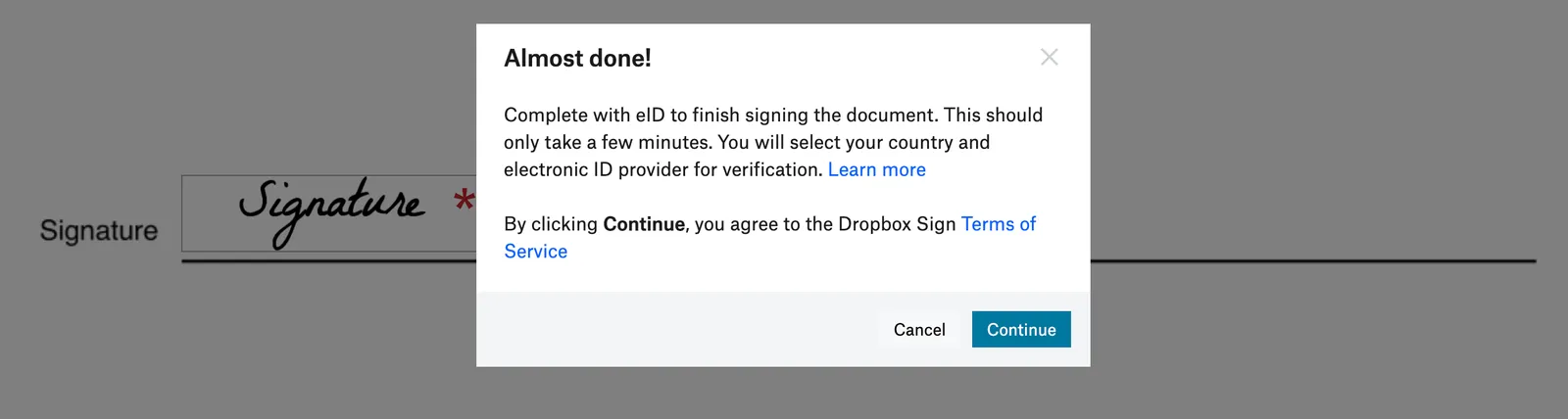 |
| 3. The Signer selects a country and the service that will verify their identification. | 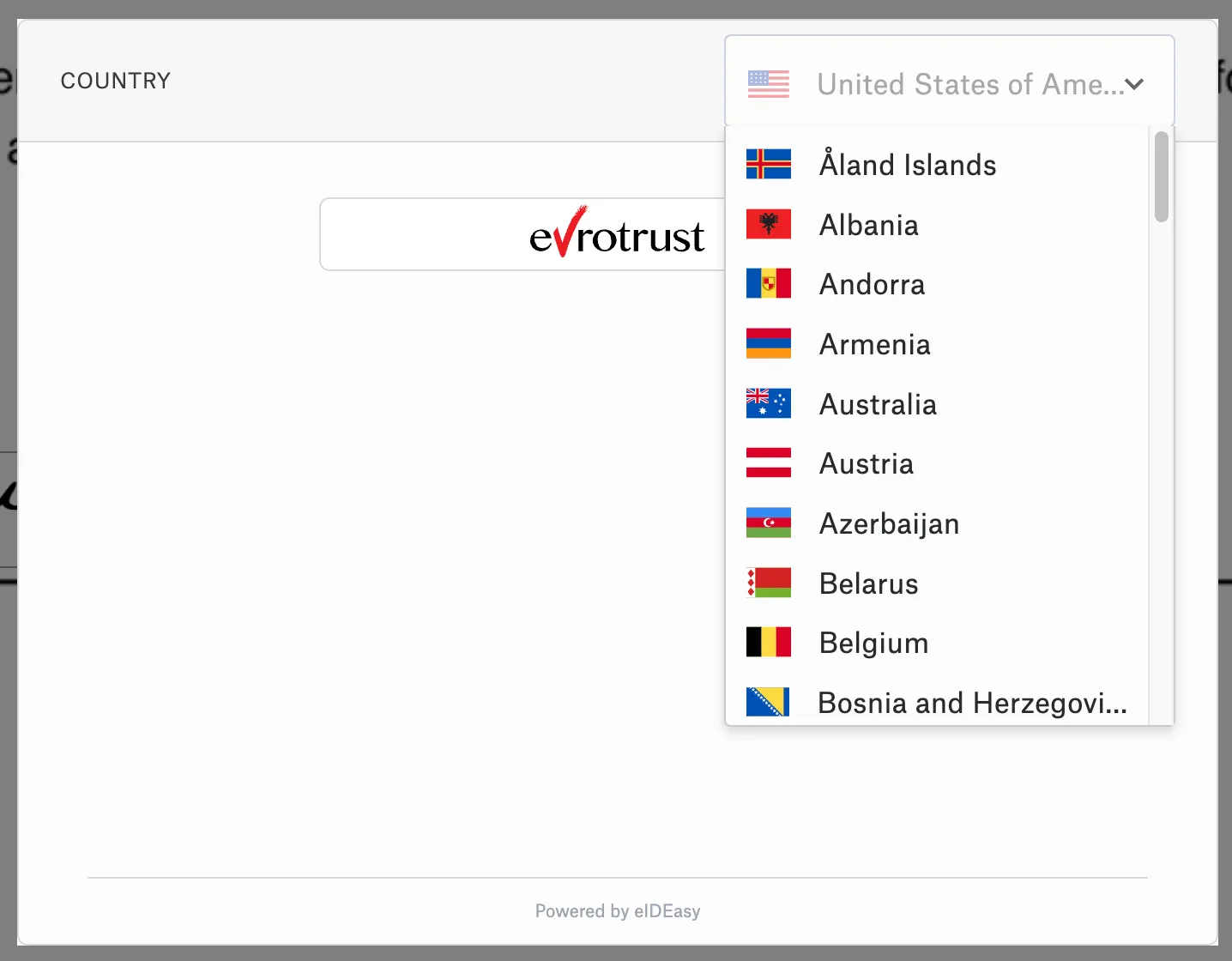 |
| 4. The modal will load the service’s interface for entering information to login to the method’s UI. The actions for completing the service’s interface will depend on the method chosen. | 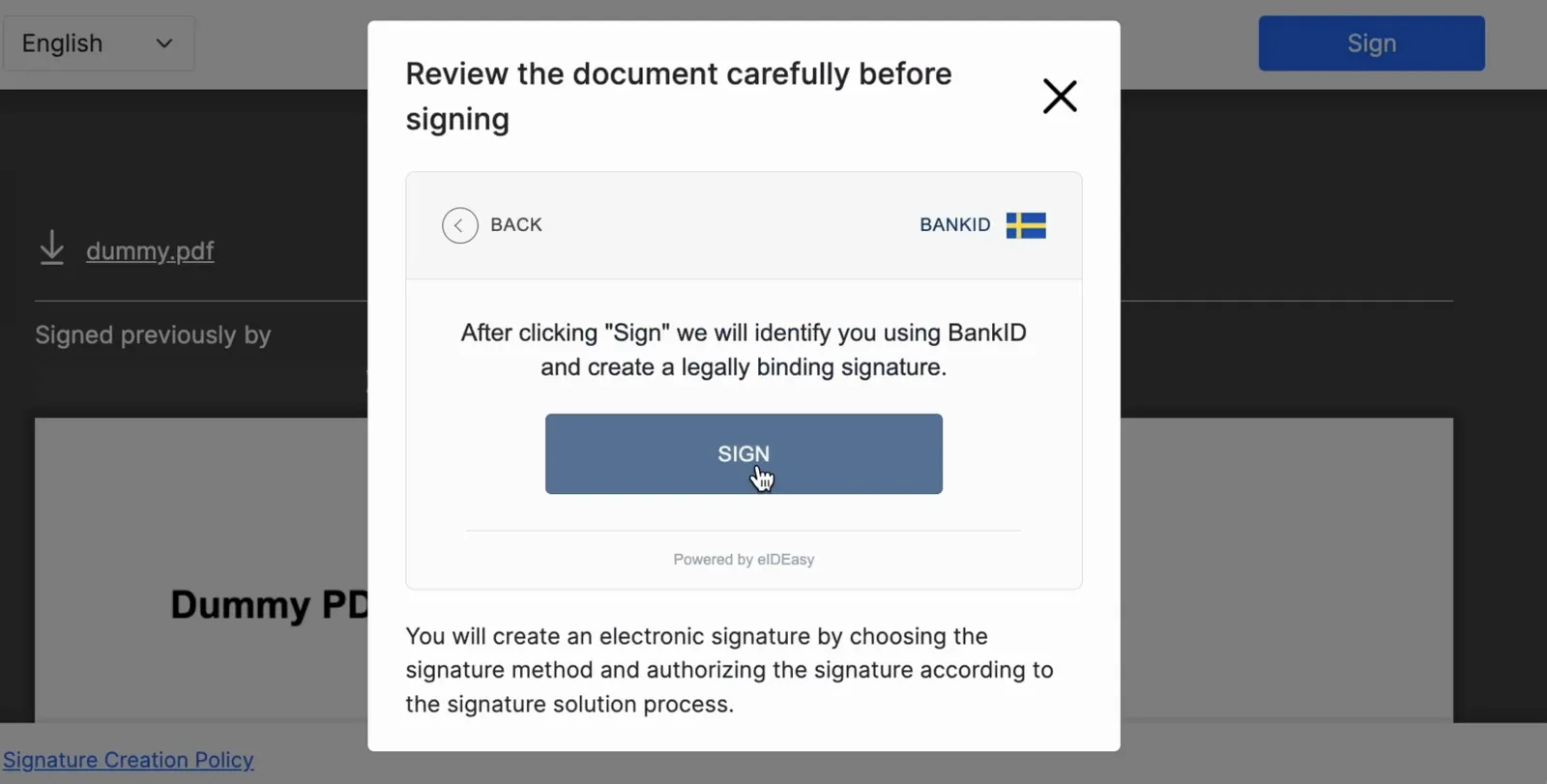 |
| 5. After completing all required steps to verify identity with eID, the document will be successfully signed. An AES (Advanced Electronic Signature) or QES (Qualified Electronic Signature) will be attached to the document. |
Documents authenticated by eID
| Steps | Images |
|---|---|
| Documents which are pending completion by an eID provider will have additional text stating that it is pending. | 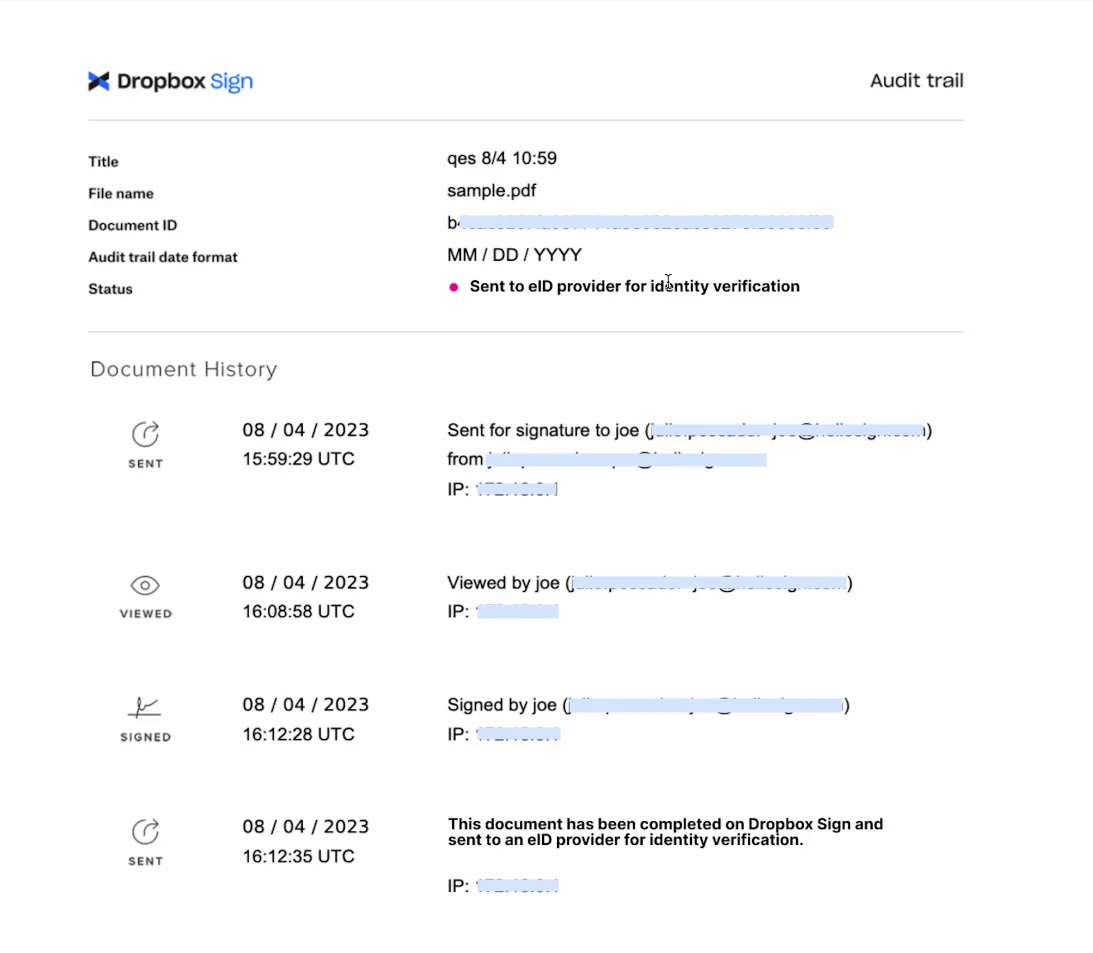 |