Updated Signer Experience
We're excited to introduce the updated Dropbox Sign signer experience, now featuring a modernized design and enhanced functionality. The new signer experience makes updates to our Signer App, which powers signature requests generated through your Dropbox Sign API calls and your Dropbox Sign account user interface. With this release, we've improved accessibility, streamlined navigation, and delivered a cleaner look and feel — making it easier than ever for signers to send and complete requests through both mobile and web experiences.
This update also introduces Form View, a new signing option that presents all required signature fields in a clear, structured order. Form View simplifies the signing process, helping signers complete documents more quickly and easily on any device. At any time, signers can switch between Form View and the full document view, giving them more flexibility and control over their signing experience.
What’s Changed
Please see the changes we will introduce in our embedded signing and non-embedded flows in detail below:
General Improvements
| Update Details | Current Design | Updated Design |
|---|---|---|
| Attachments: clicking on “Add Attachments” button in Desktop view when completing a document opens a new side panel drawer where attachments can be added by clicking on the “Upload” button. The same side panel drawer is triggered when clicking on “Click to upload attachments” when in Form View. |  | 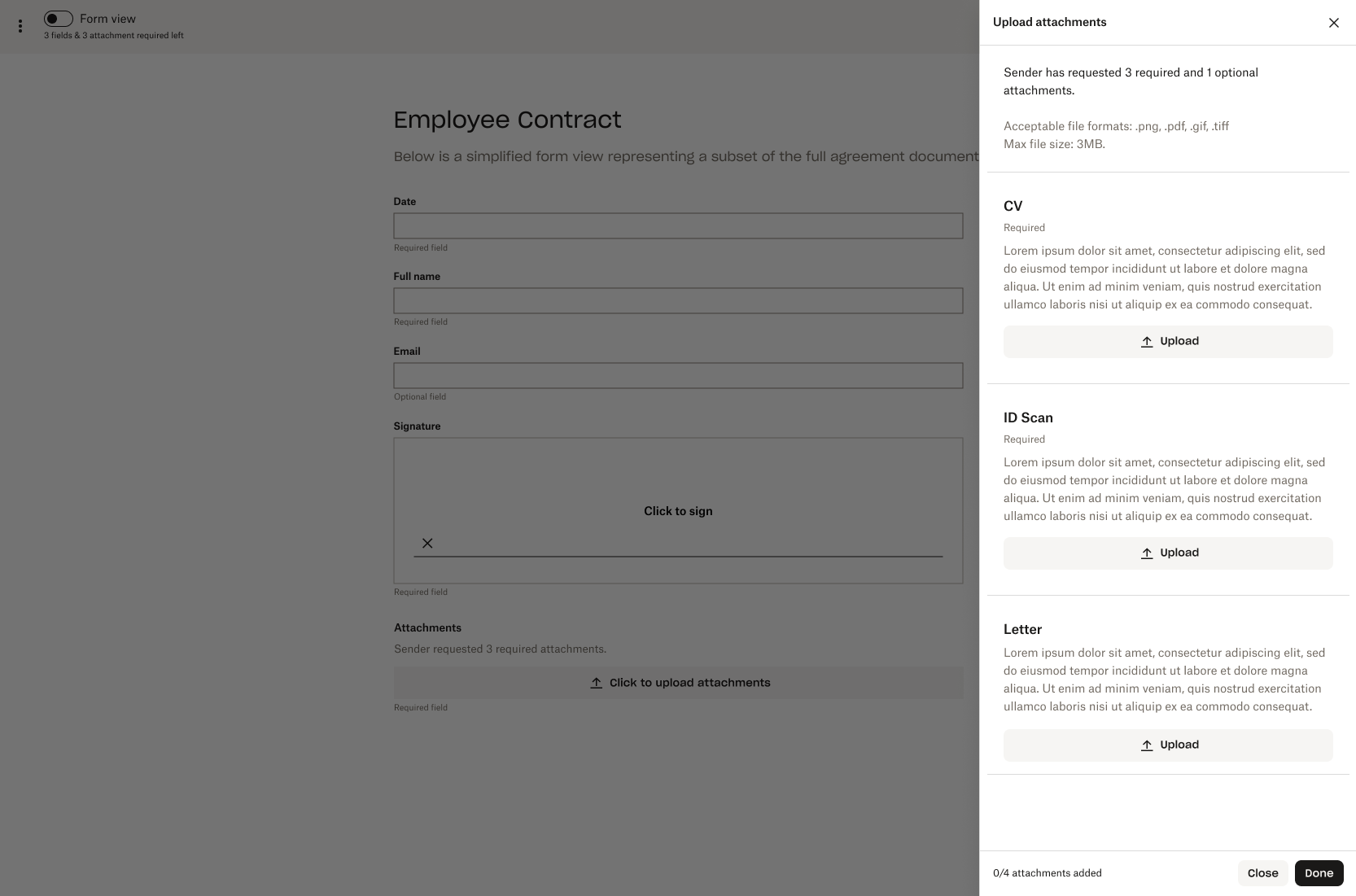 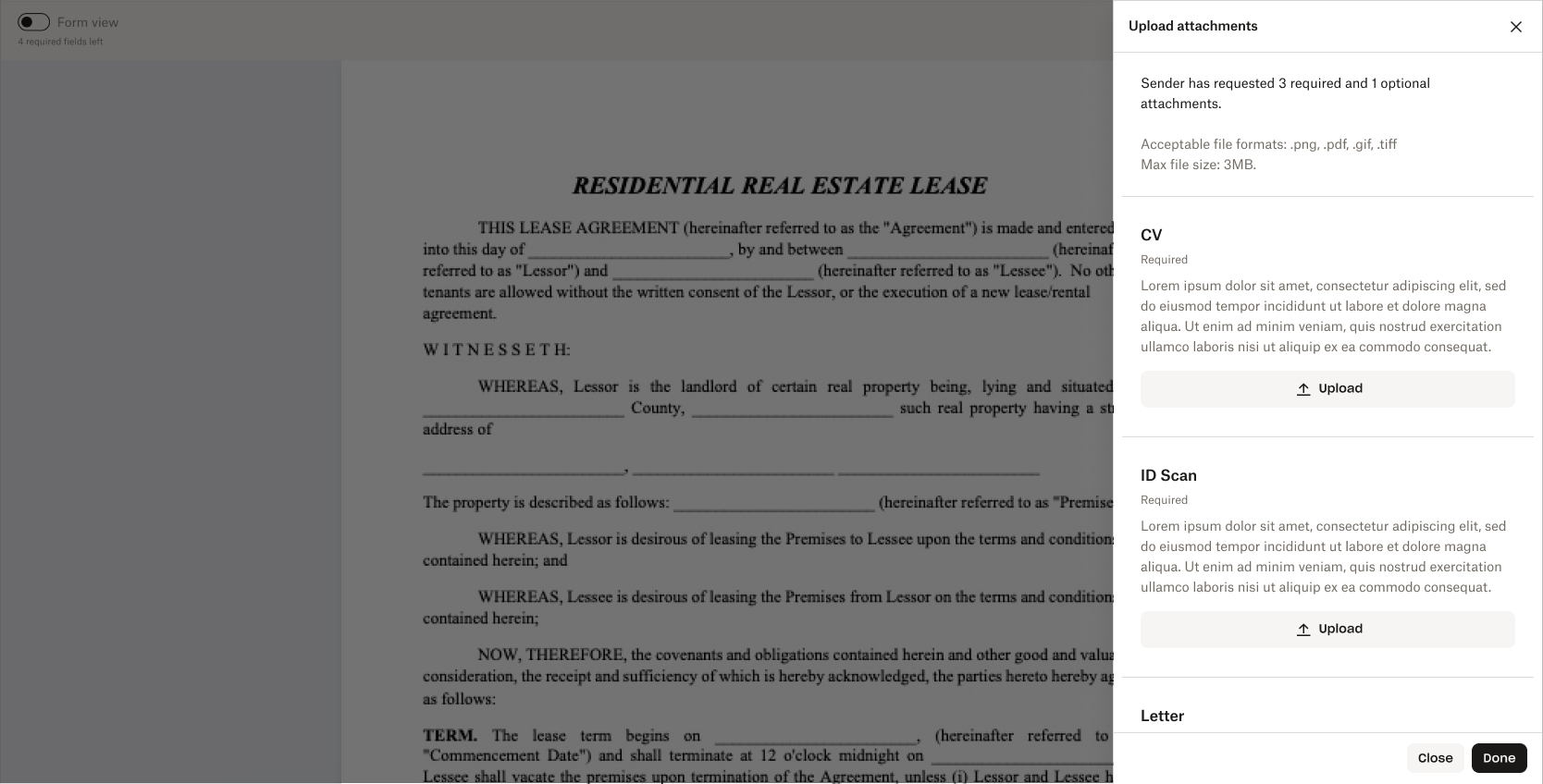 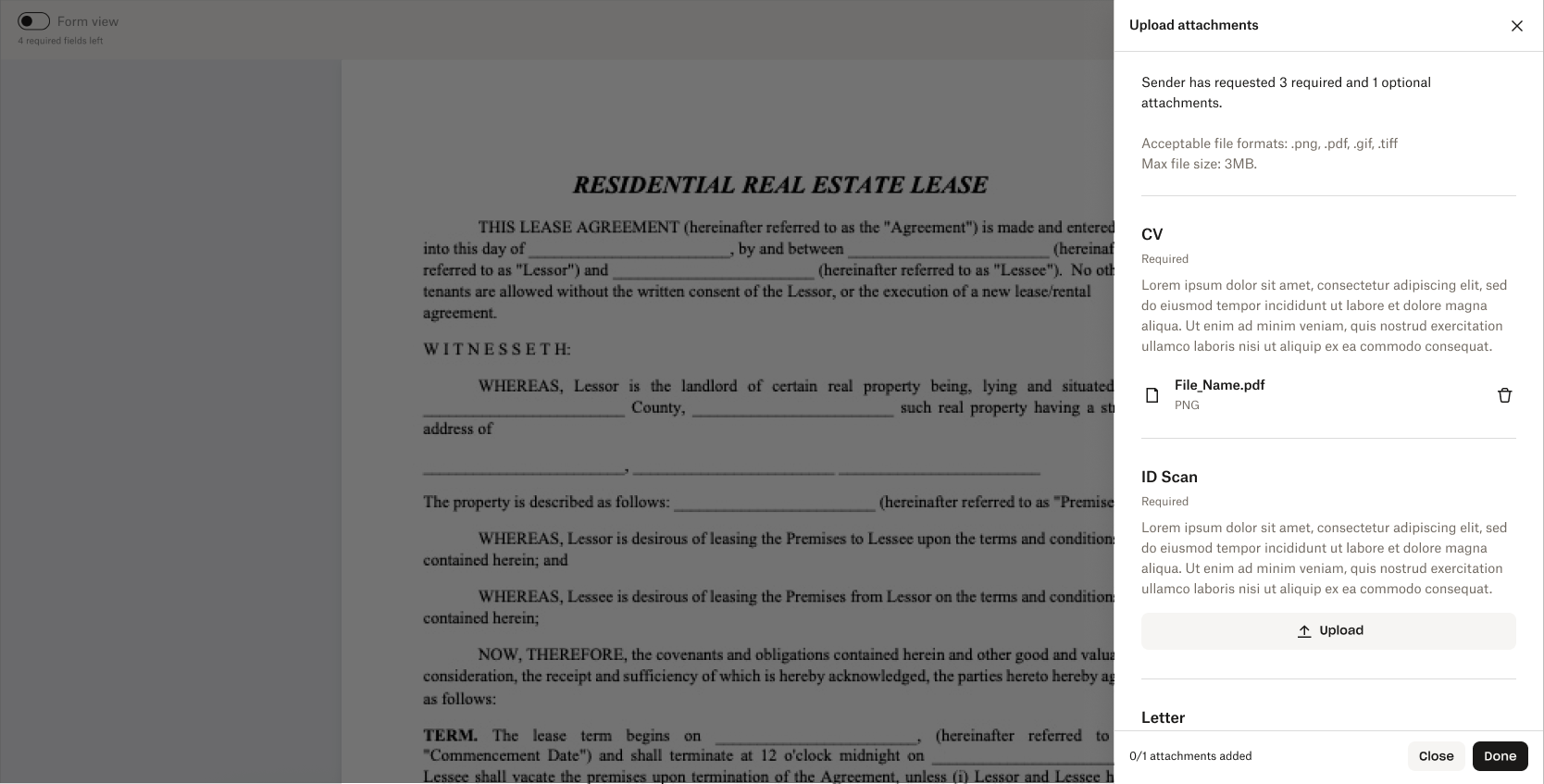 |
| If a signature request attachment(s) is required, an “Add Attachments” button appears in the top navigation bar on Desktop. | 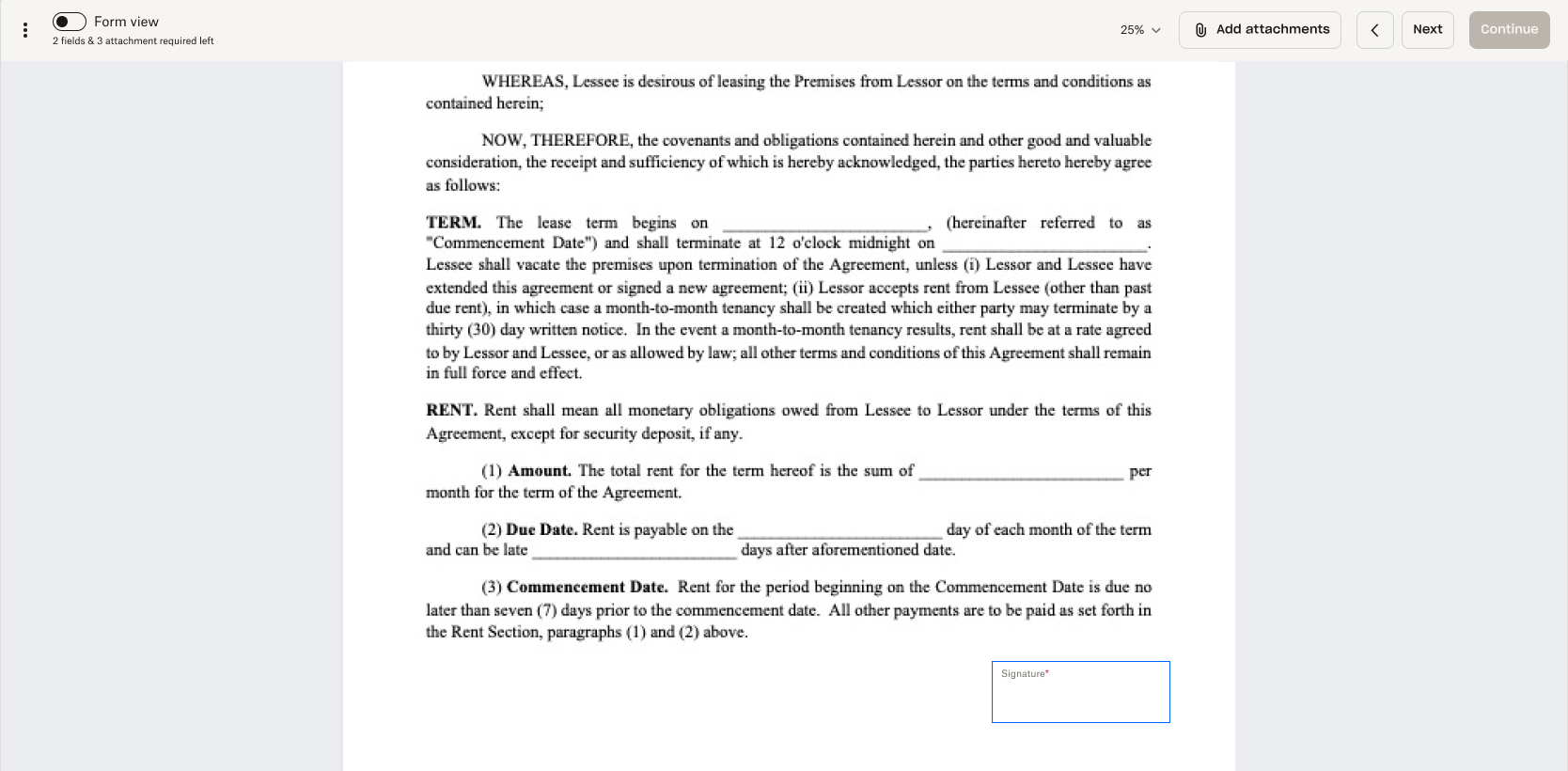 | |
| Saved Signatures: signing with the Saved Signatures option now shows as a single signature. Any additional saved signatures are available by clicking on the left and right arrow icon buttons. The number of saved signatures is also displayed in the top left corner of the input field. | 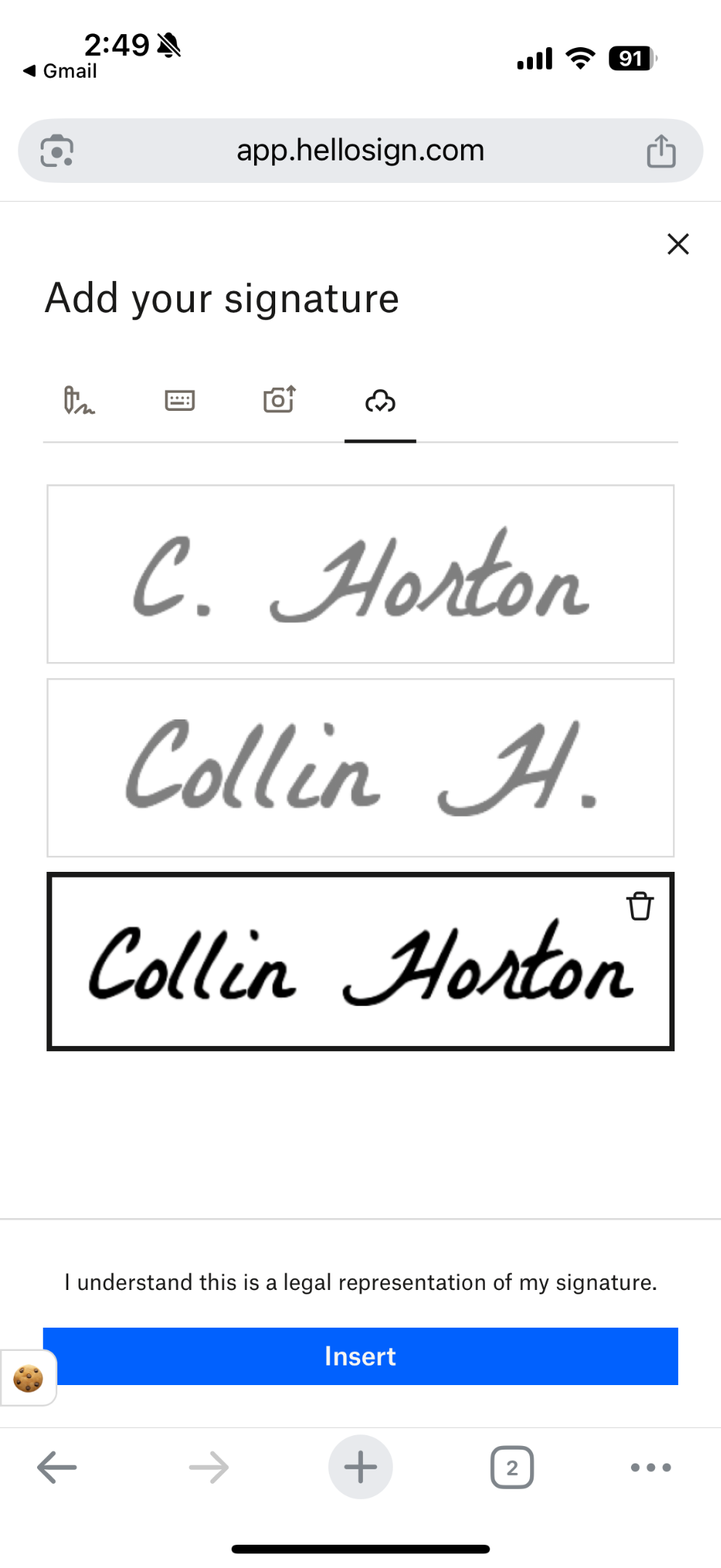 | 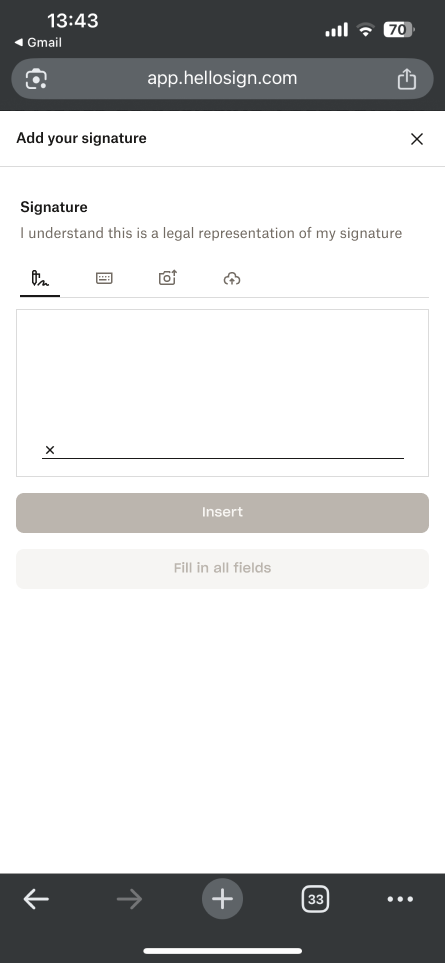 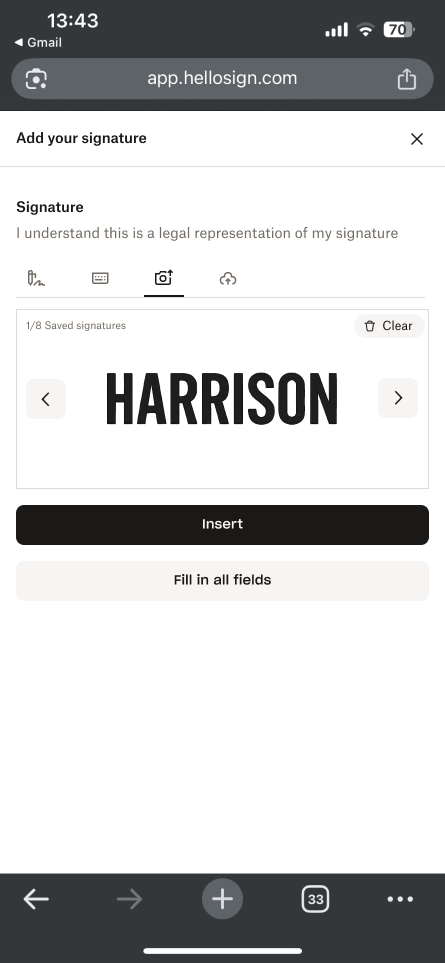 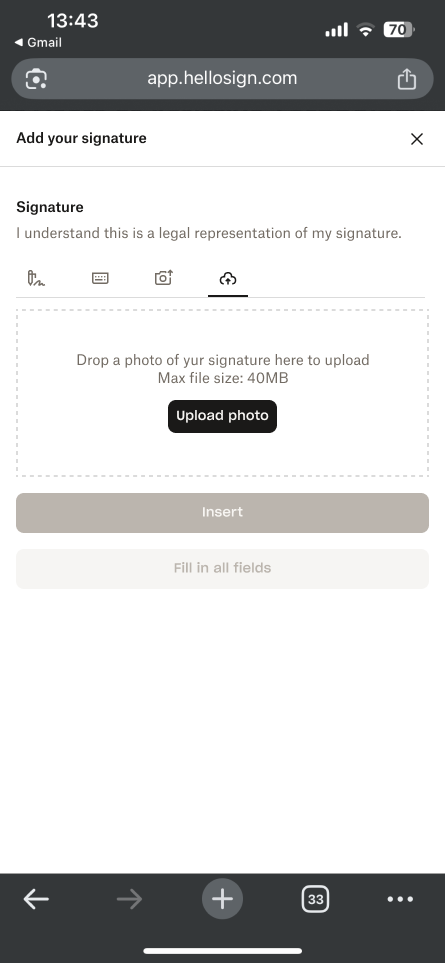 |
| Access code: the access code page displays clearer instructions: “To access this document, enter the code provided by the sender. Contact the sender for more information.” The access code is case sensitive and there is a limited number of attempts to access the document. | 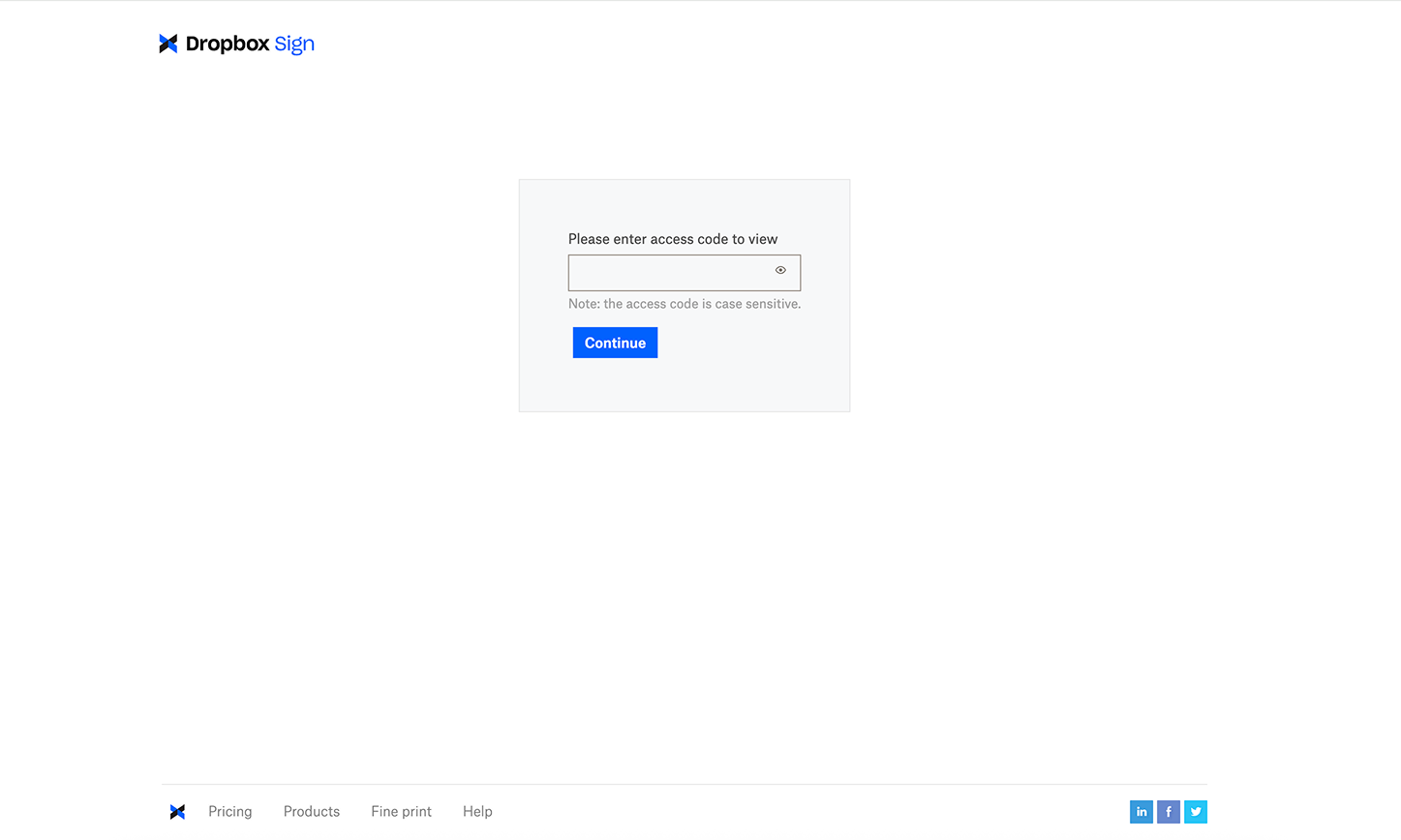 | 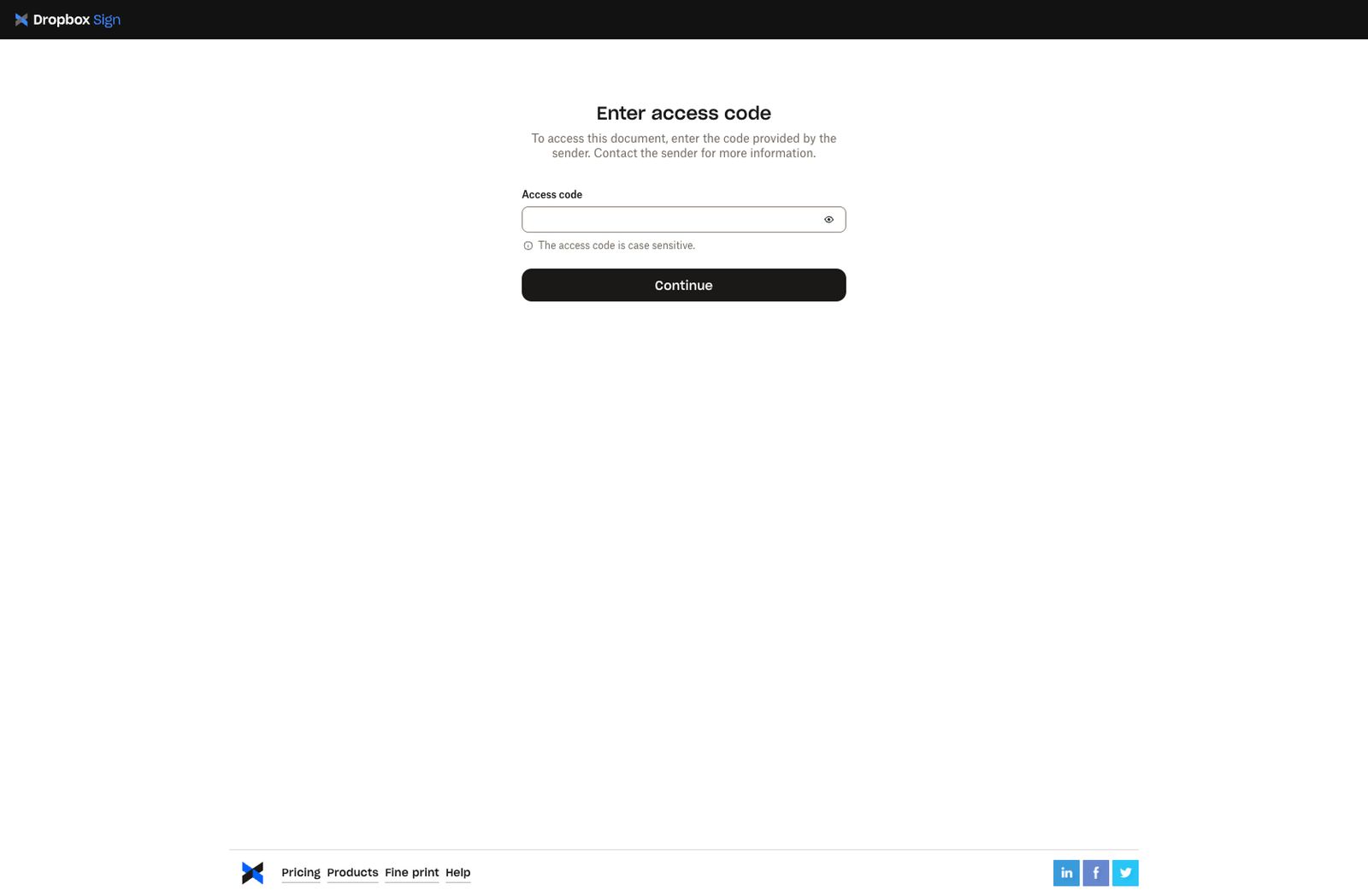 |
Form View: Prep and Send for Signature
| Update Details | Current Design | Updated Design |
|---|---|---|
| New “Form View Signing” section allowing requesters to enable the Form View feature. |  | 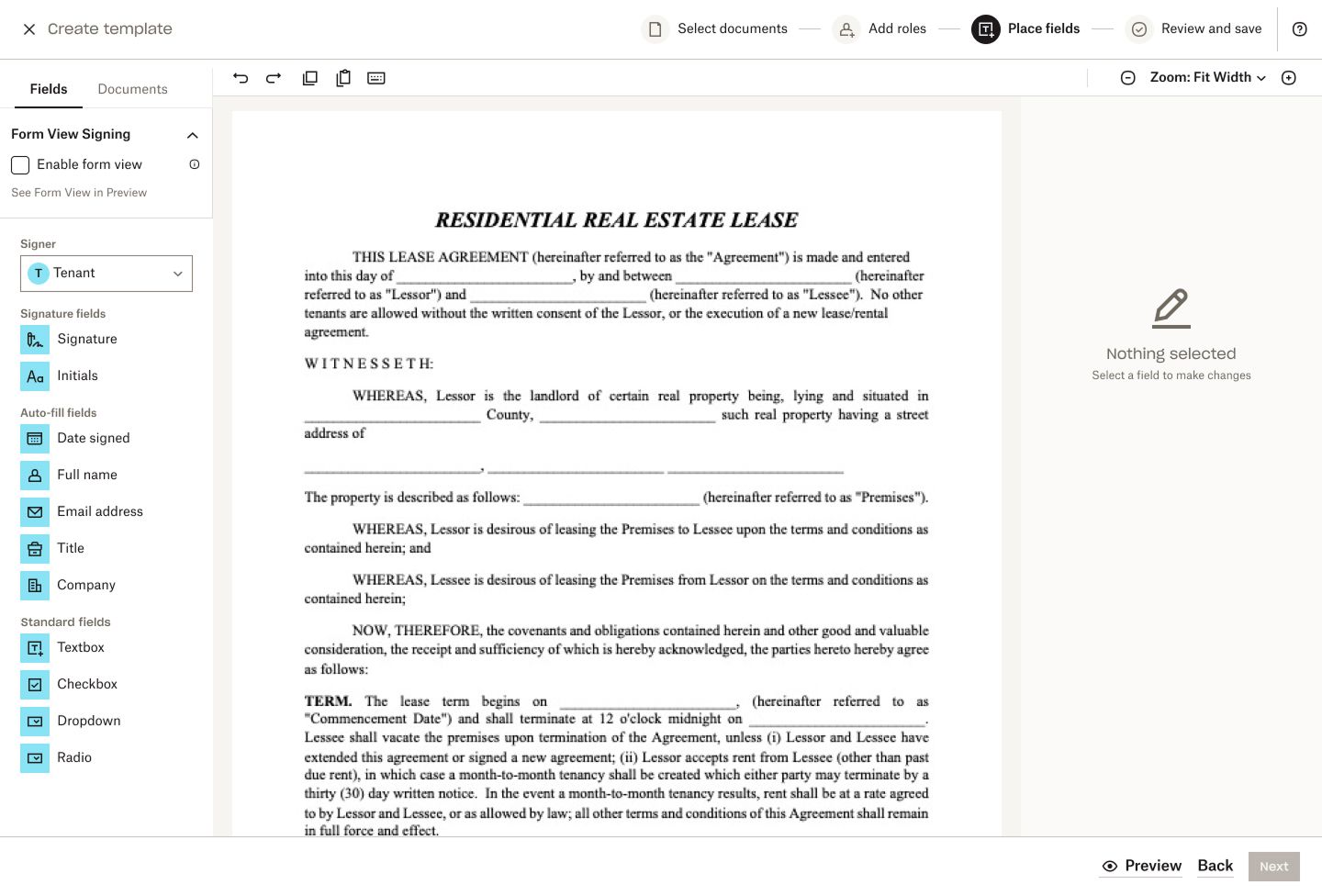 |
| When Form View is enabled (via checkbox) and the requester adds a field from the Standard Fields group to the document, an interactive popover with an active cursor appears, prompting the user to define a custom field name. Important Notes: - Enabling Form View removes the default field names from the Standard Fields group. Each field must be assigned a custom name. - The custom field name is displayed to the signer, giving them the necessary context about what information is required. - Every field requires a name — the field name input cannot be left empty. An empty field triggers a validation error. - The Next button remains disabled until all fields have been named. | 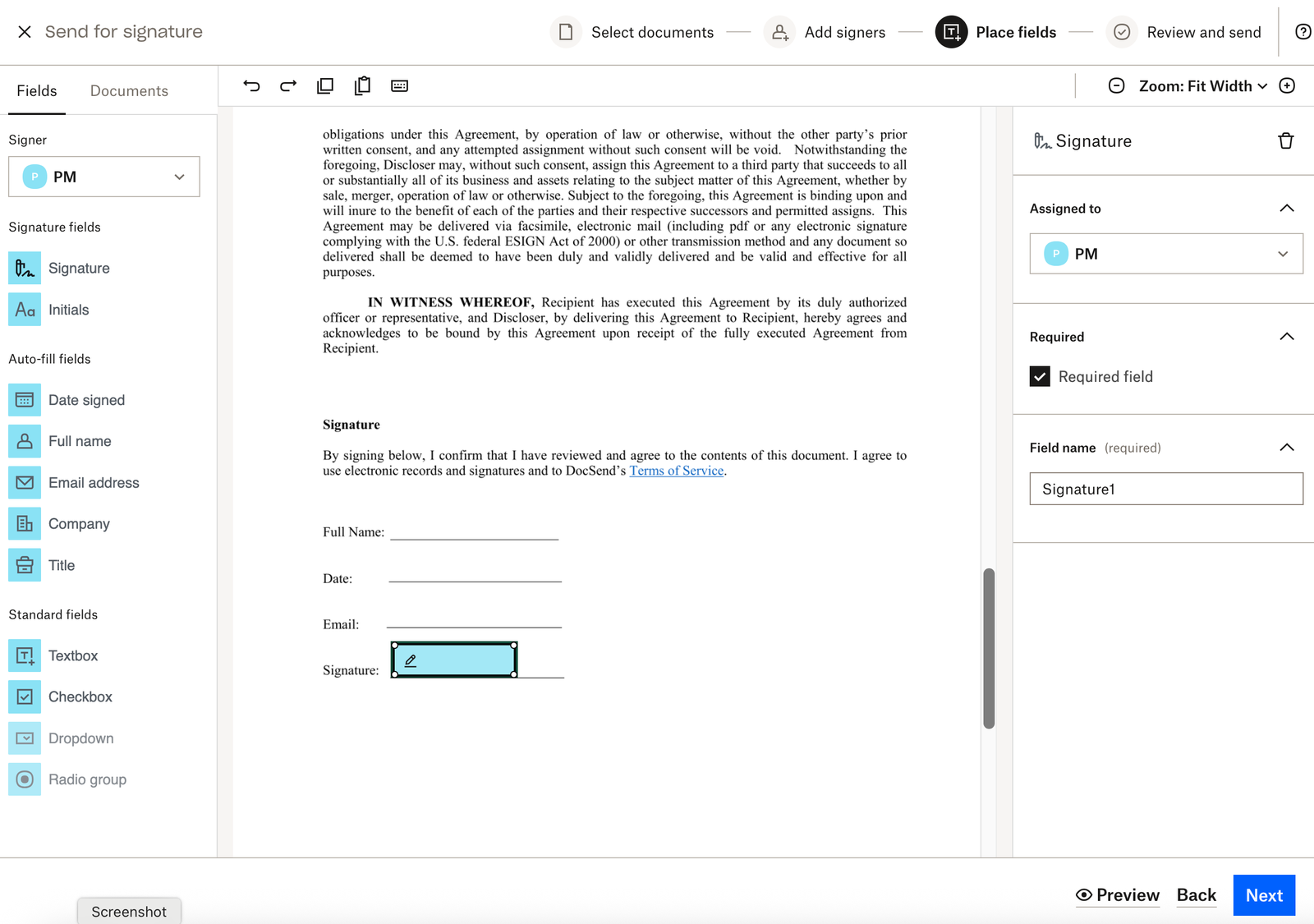 | 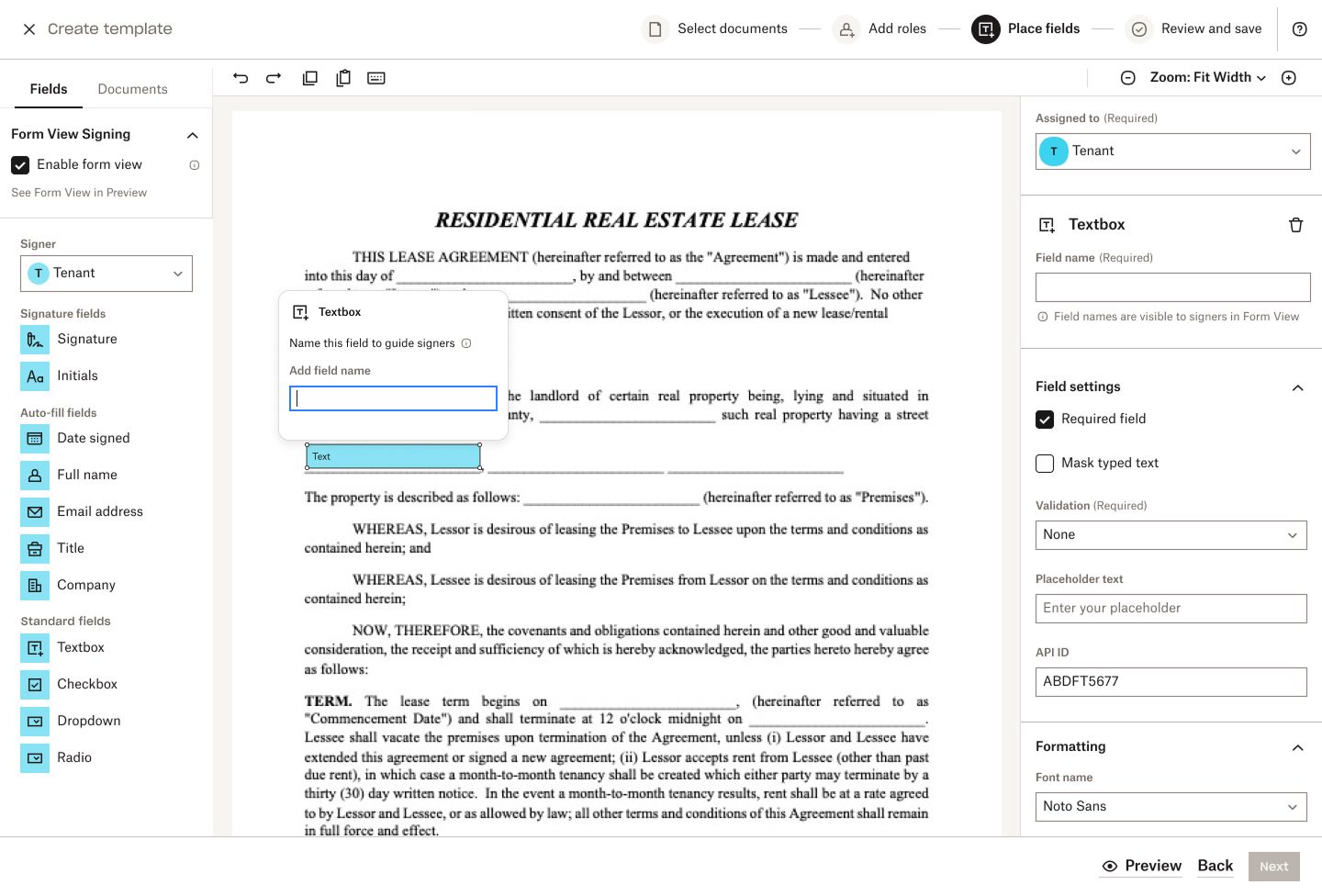 |
| Fields added before the Form View is enabled from the Standard Fields group will be highlighted in red and must be given a name. If those fields were already named, their existing names remain unchanged. | 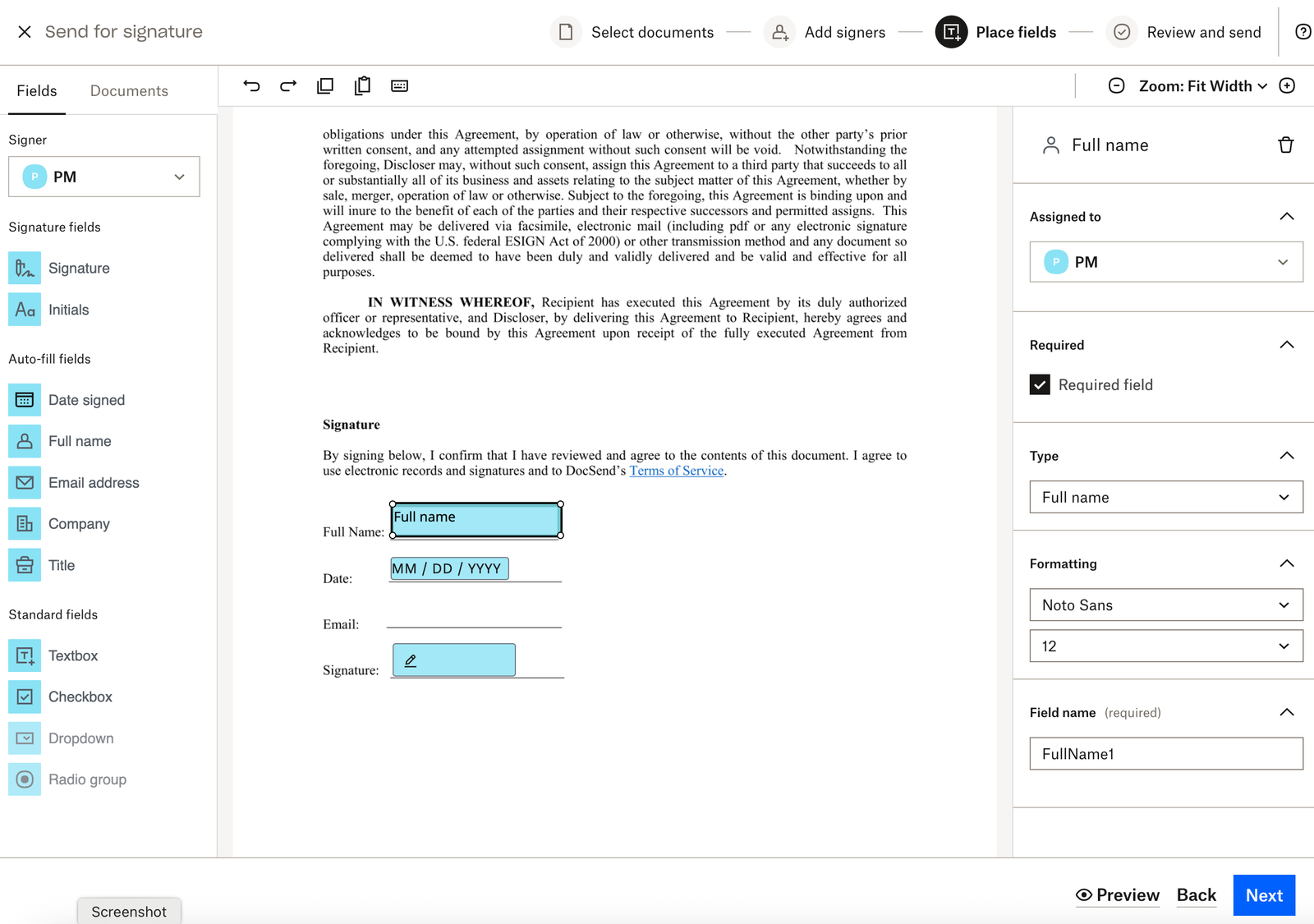 | 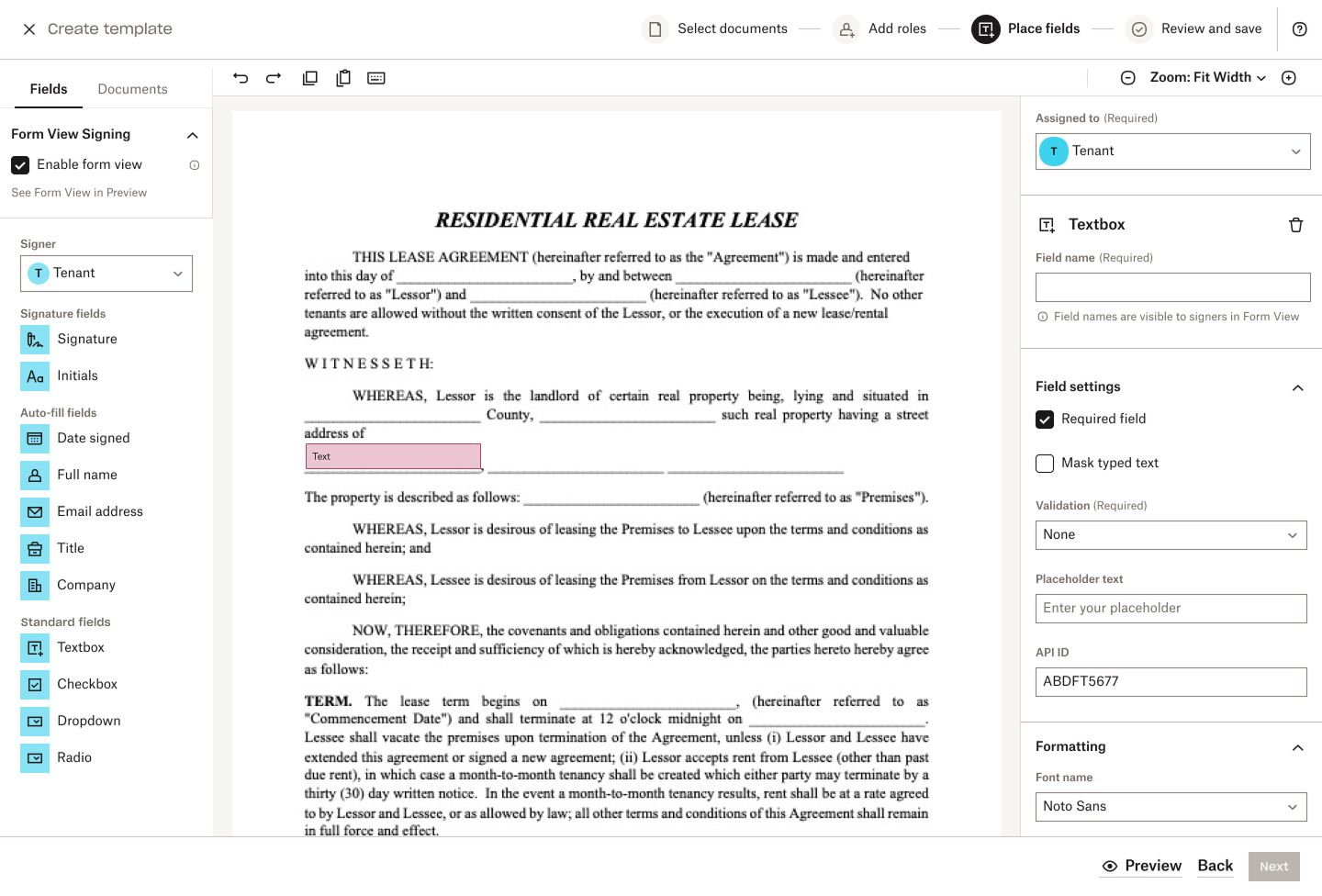 |
| New “Preview Mode” lets the requester toggle between the Desktop and Form views. | 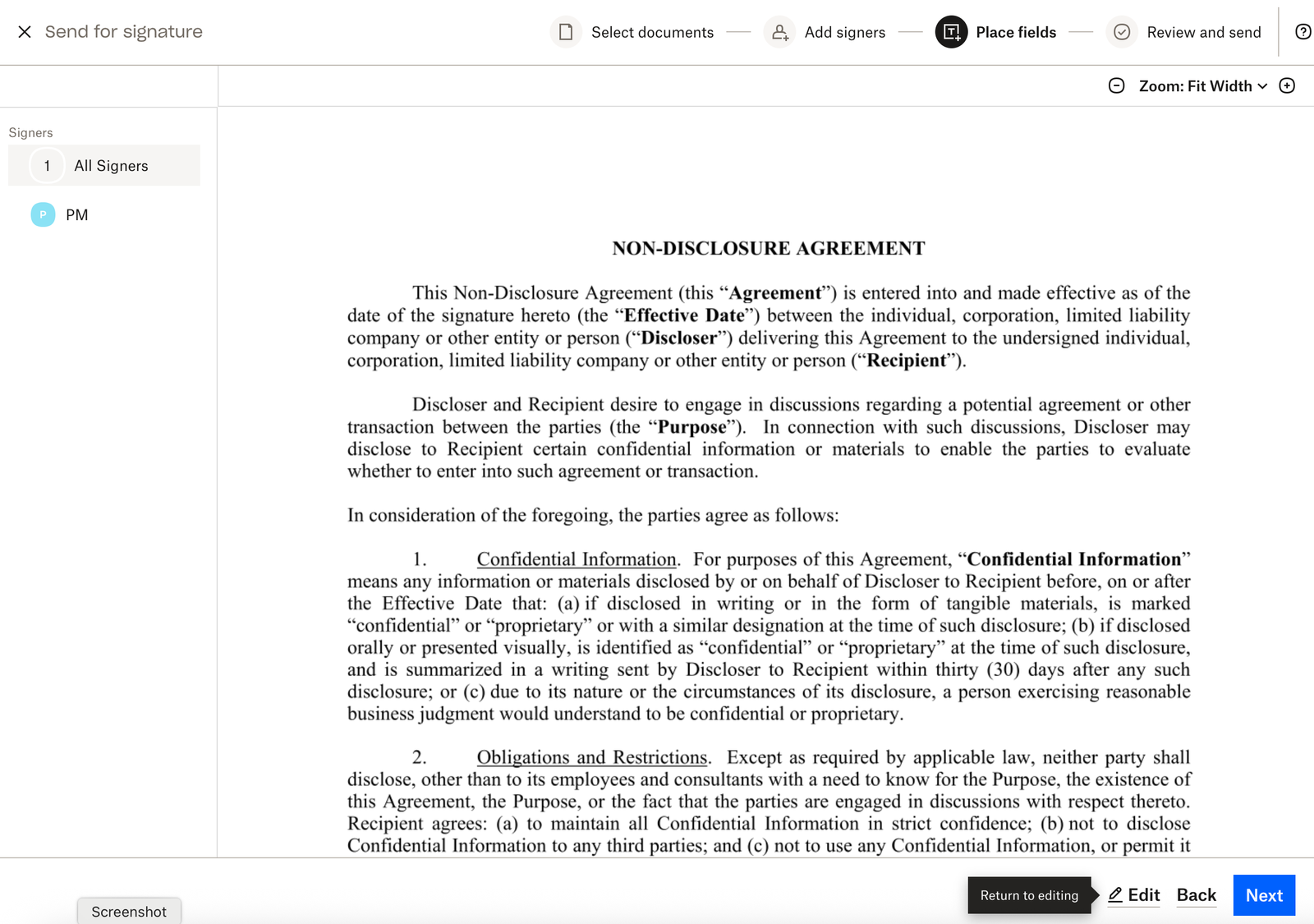 | 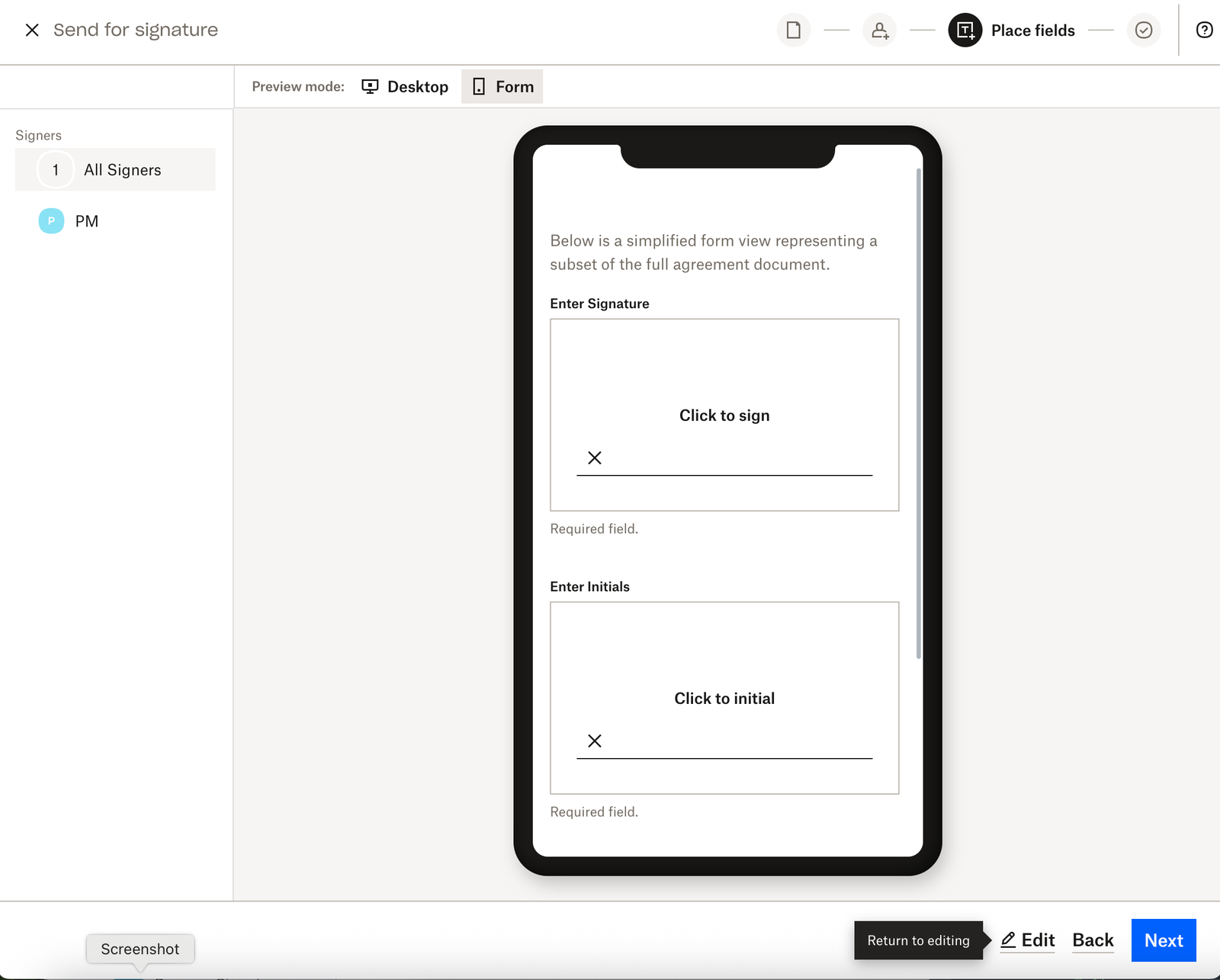 |
Form View: Signing
| Update Details | Current Design | Updated Design |
|---|---|---|
| The Get Started button has changed locations and is now in the top left corner. | 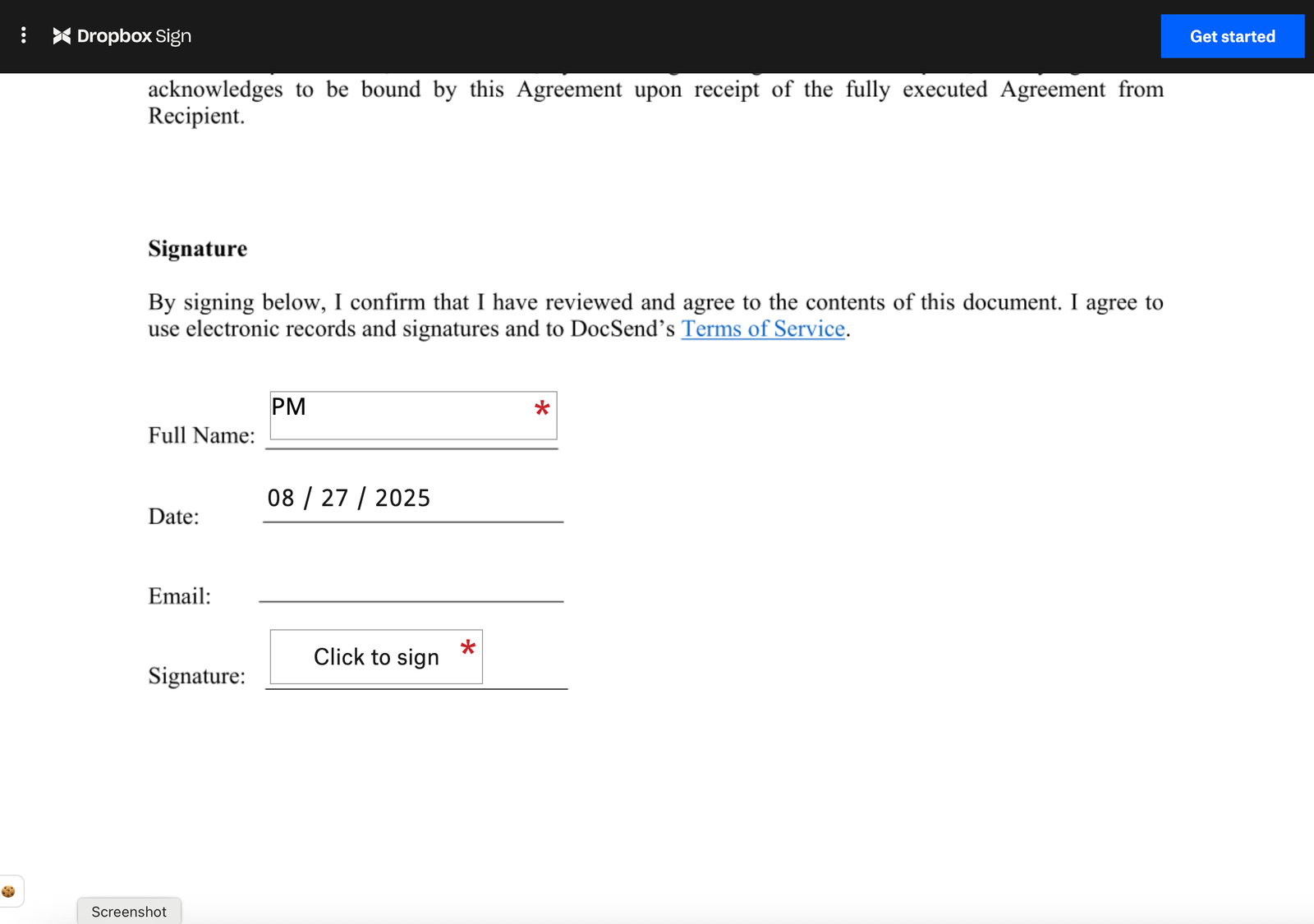 | 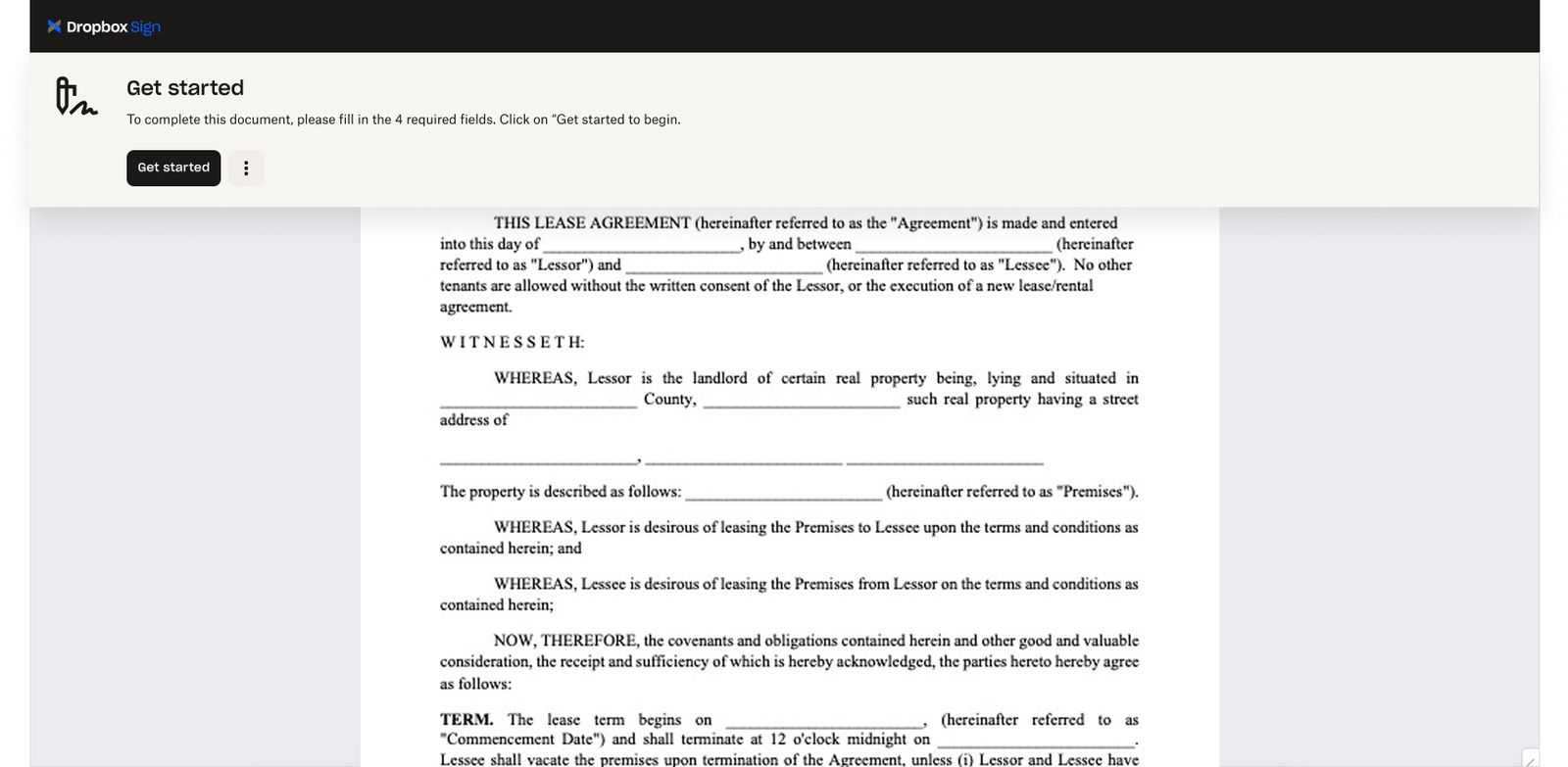 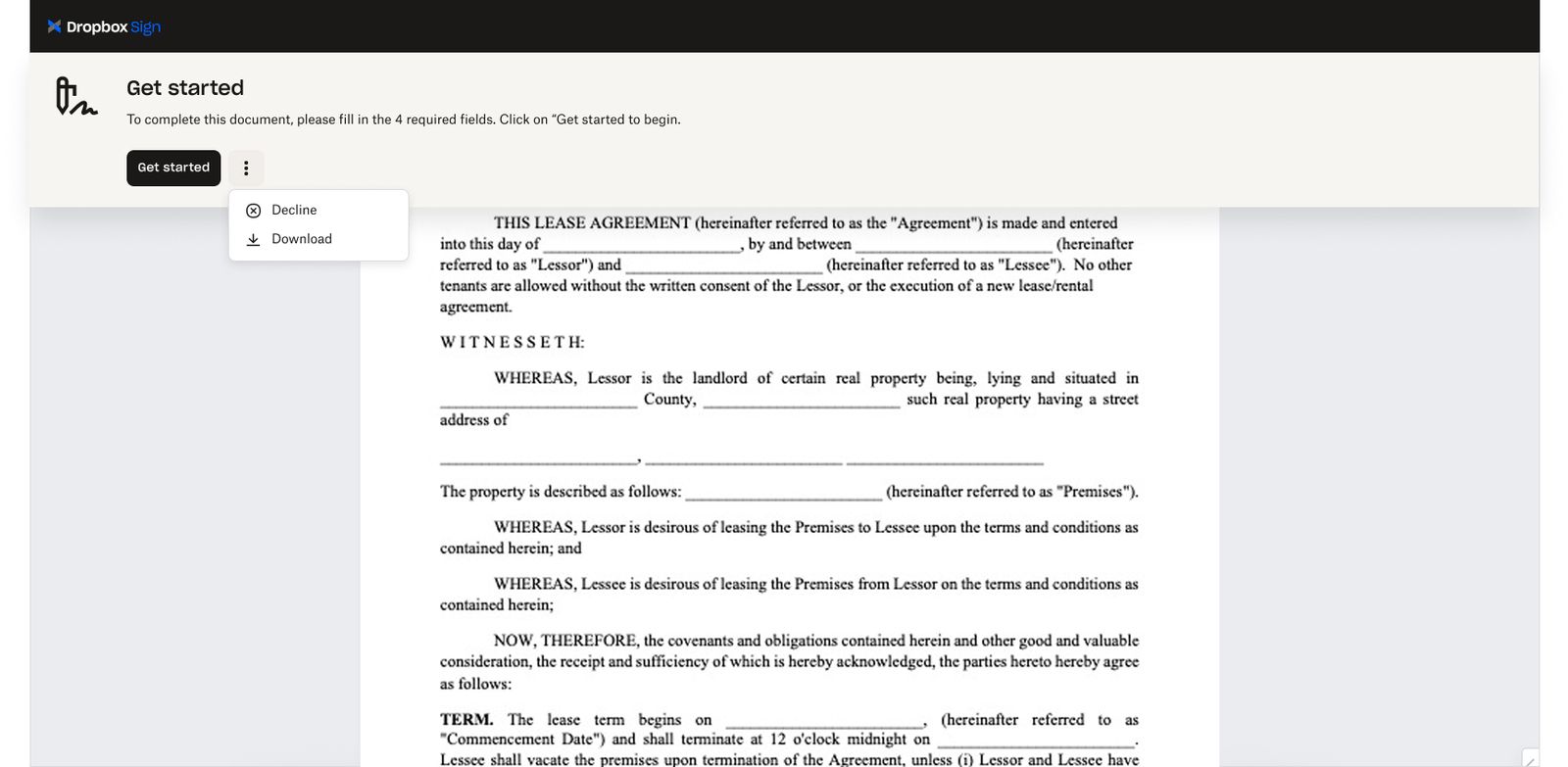 |
| Within the signing flow, a new Form View toggle is displayed in the top-left corner if the requestor enabled the signature request for Form view signing. | 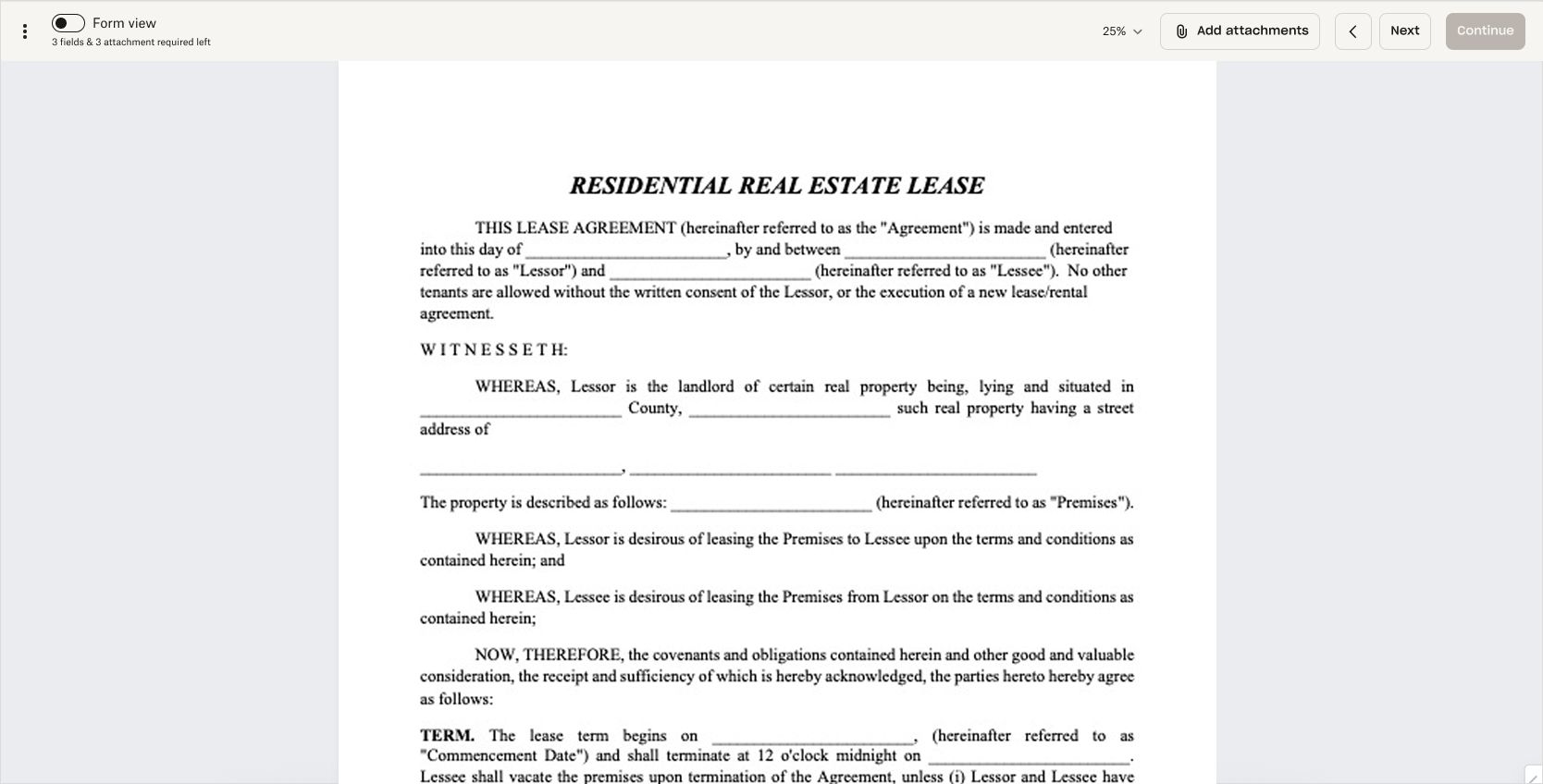 | |
| The new Form View displays all fields in a clear, organized layout. Important Notes: - The "Continue” button becomes enabled once all required fields are filled. - If attachments are required, an upload option appears at the end of the form. Selecting “Click to upload attachments” opens a side drawer panel with options to upload. - Uploaded attachments are immediately reflected in the Form View. | 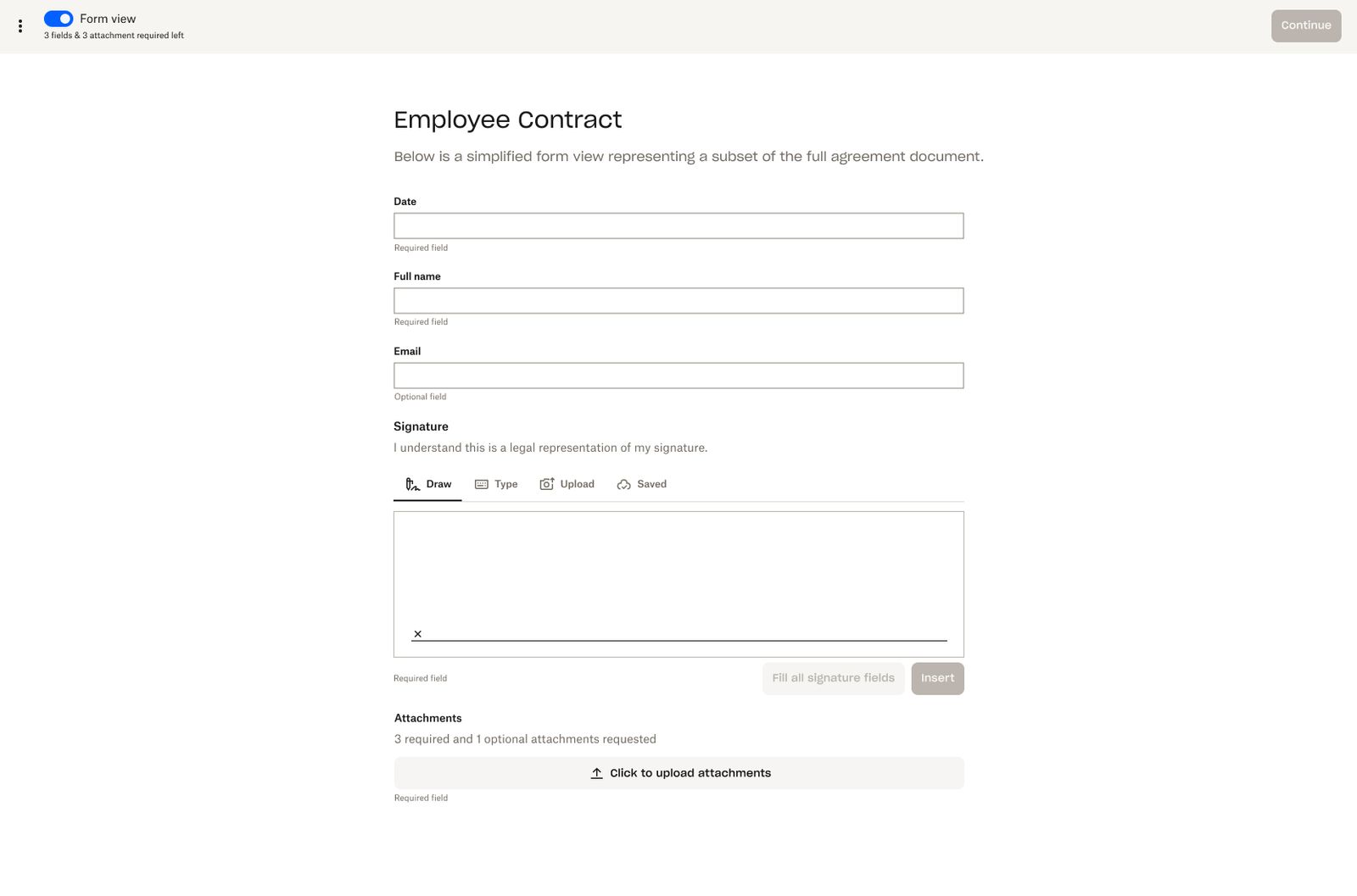 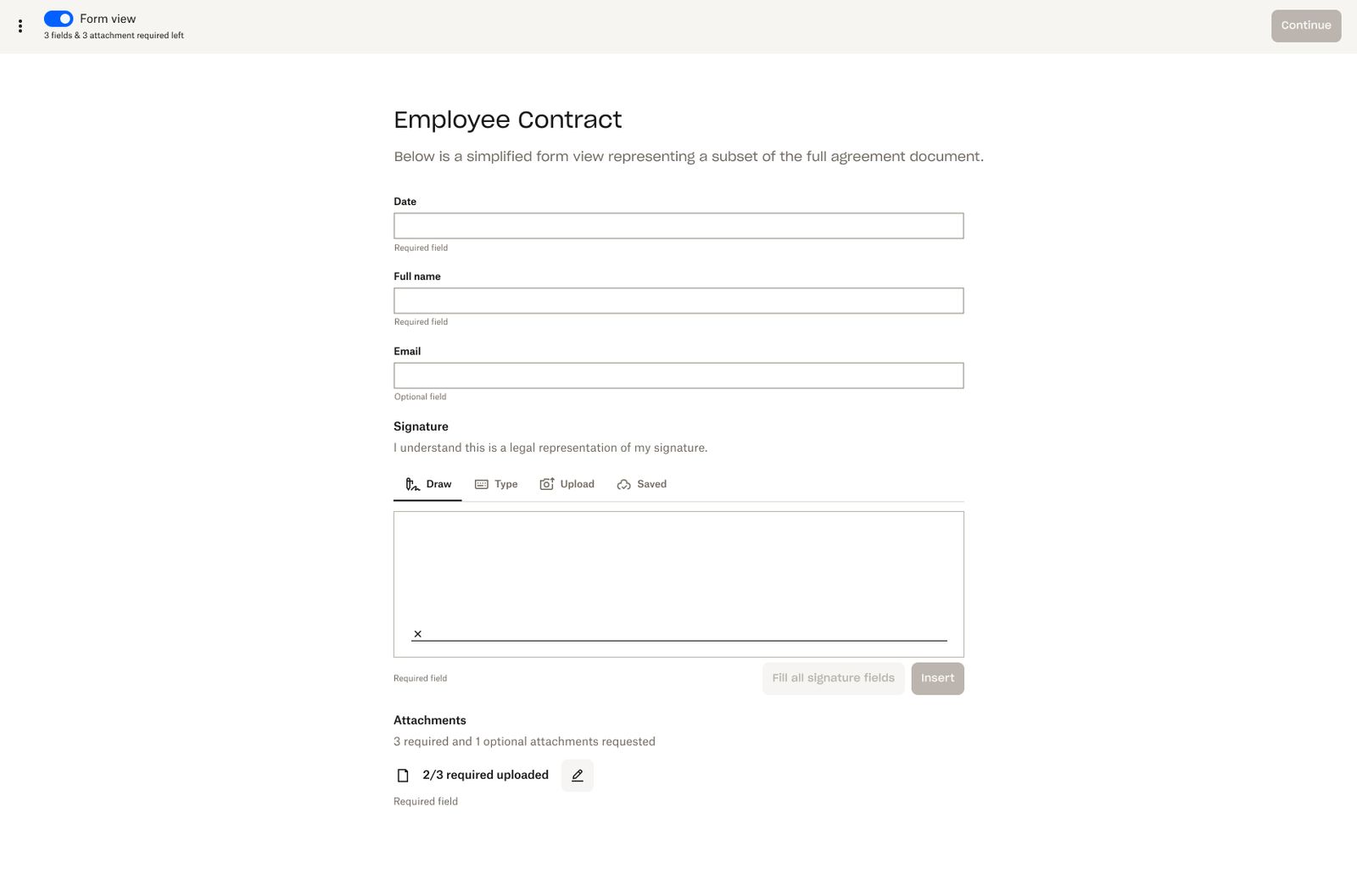 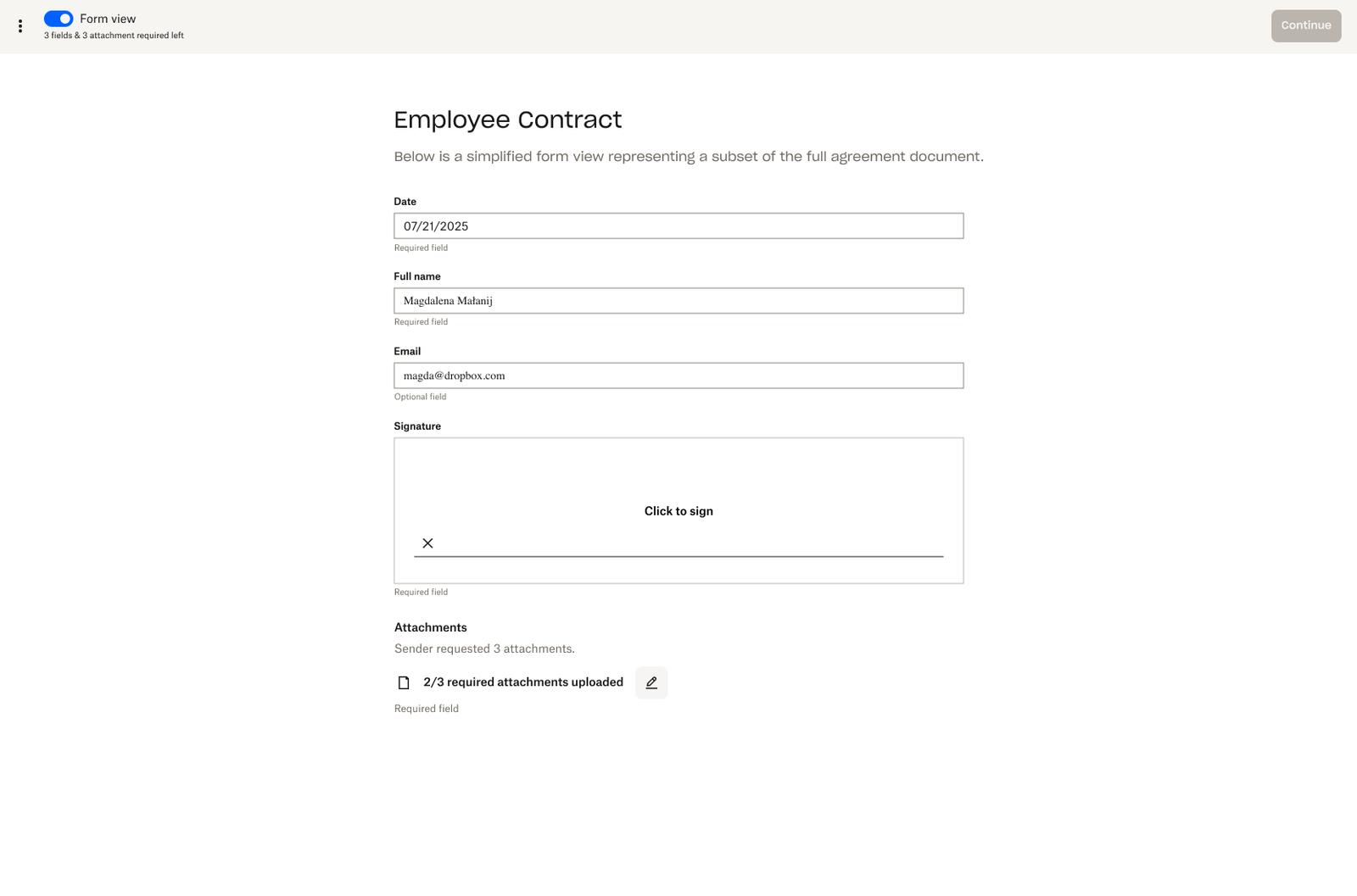 | |
| With the new Form View toggled, signature fields are active and a signature can be added by selecting “Insert” in the field or by clicking on “Fill all signature fields” to fill all the signature fields in the document. Important Notes: - Signatures can be adjusted using the toolbar options that appear in the active signature field. - Once the signature is inserted, you’ll have the options to “Edit” or “Clear” the signature. | 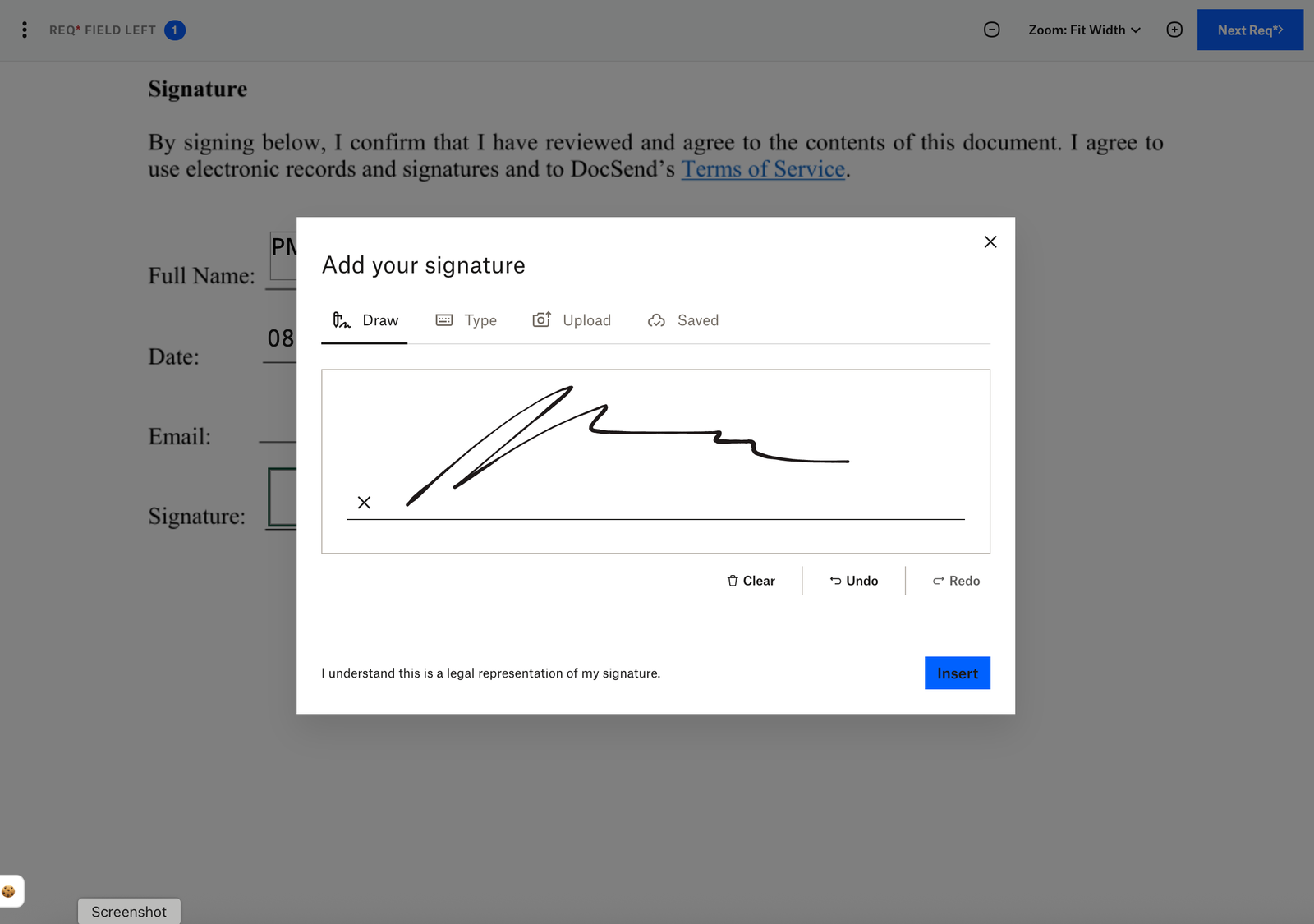 | 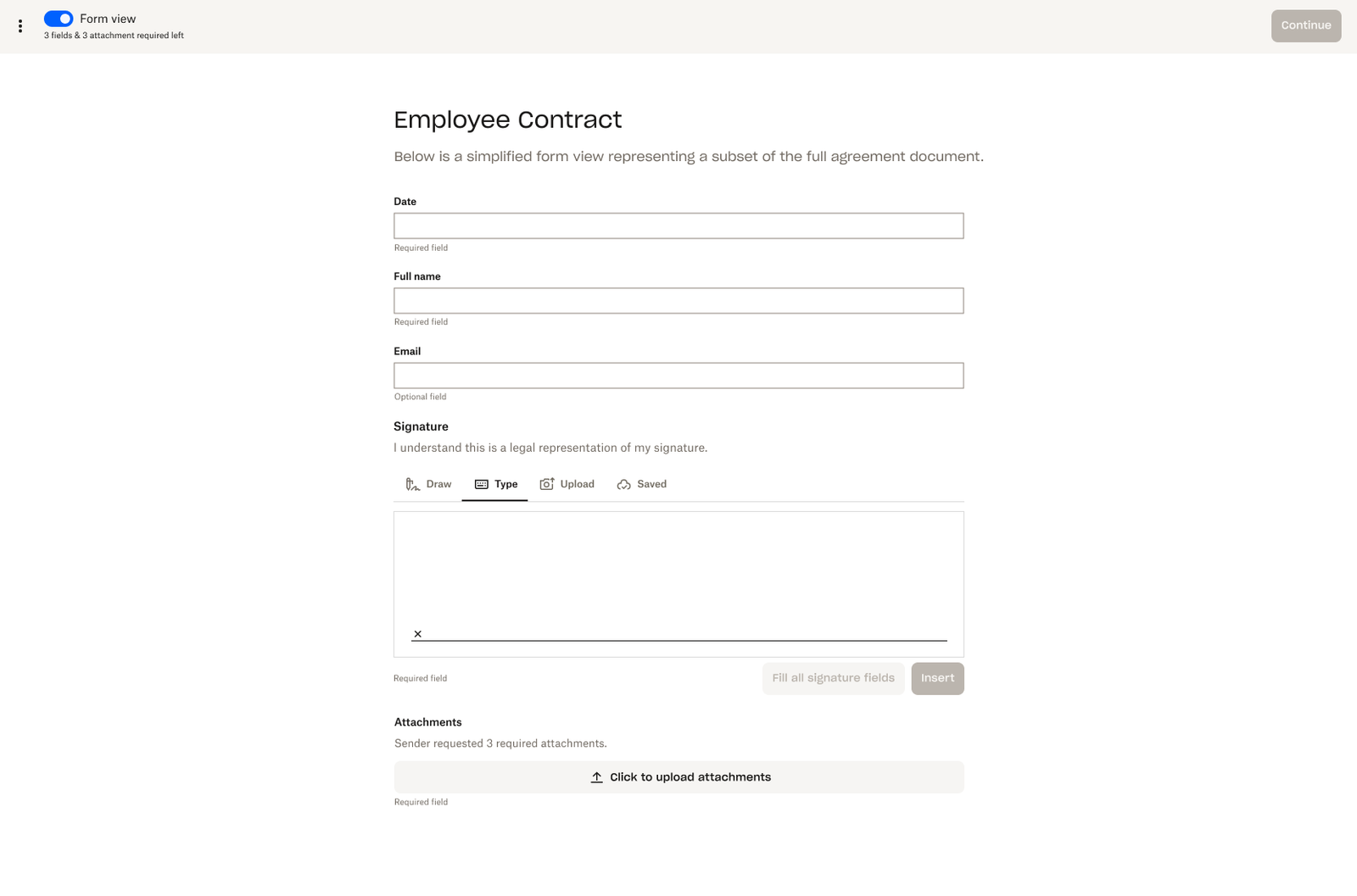 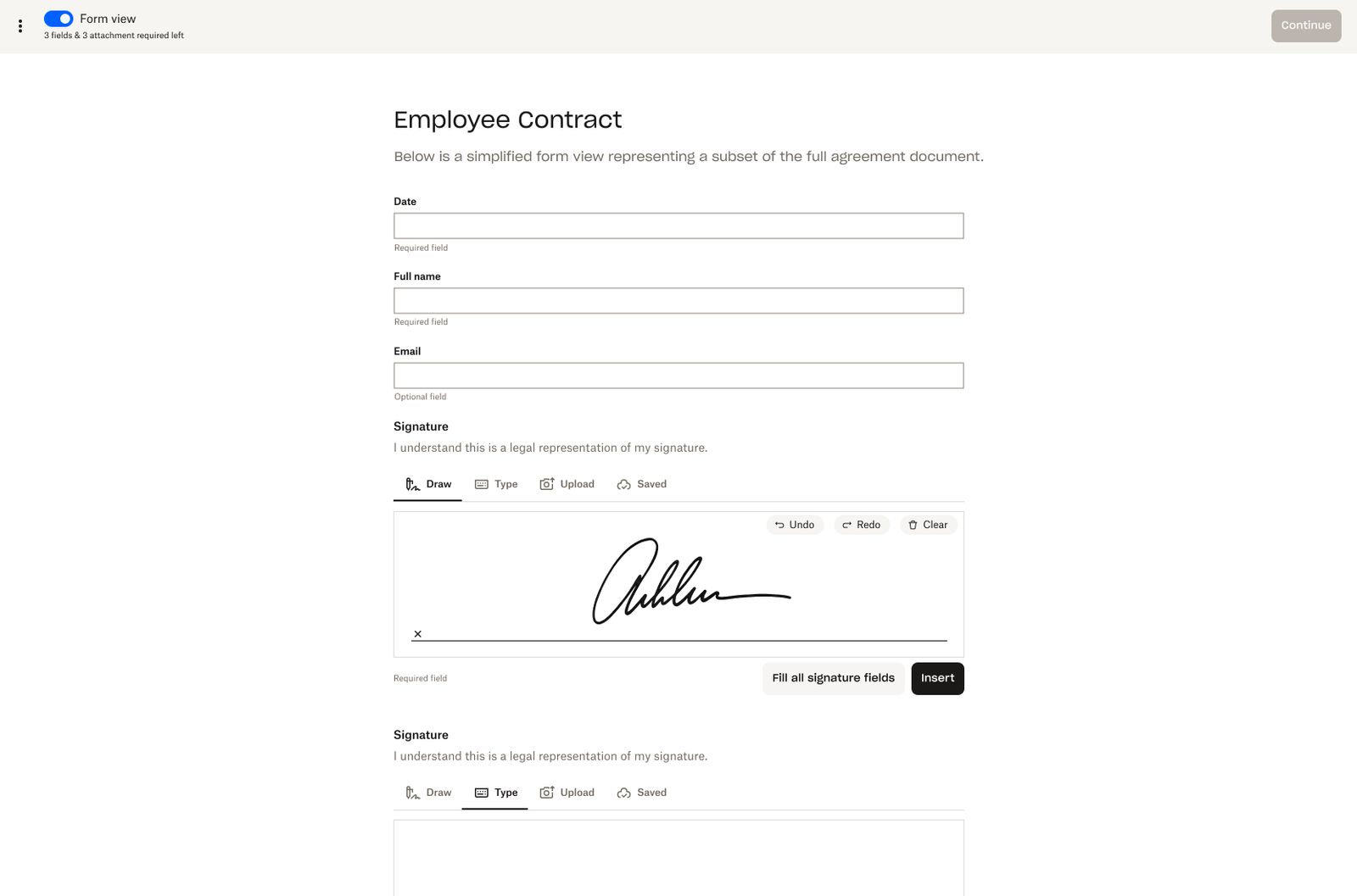 |
Mobile Device Experience
| Update Details | Current Design | Updated Design |
|---|---|---|
| With Form View enabled on a mobile device, the “Get started” button appears in a drawer at the top of the document view. This also displays the number of filled out fields in the left corner. | 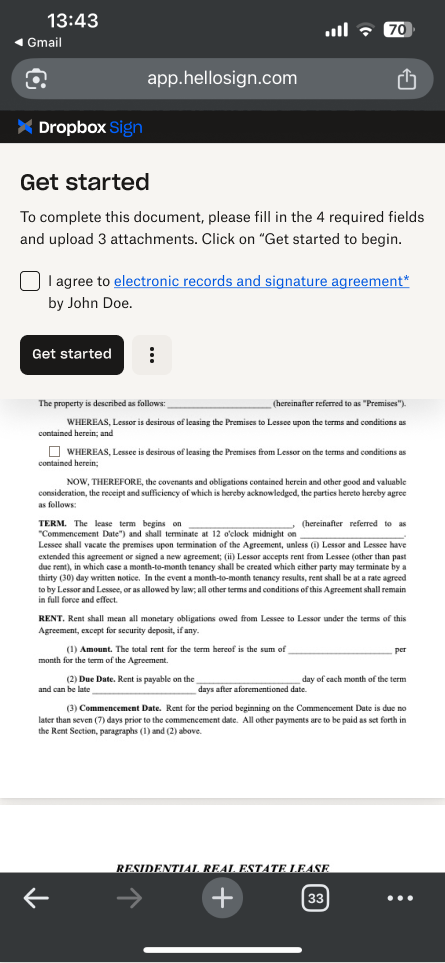 | |
| With Form View enabled, the default document view on mobile devices will place the “Legal agreement” checkbox above the “Get started” button in the drawer at the top of the document. | 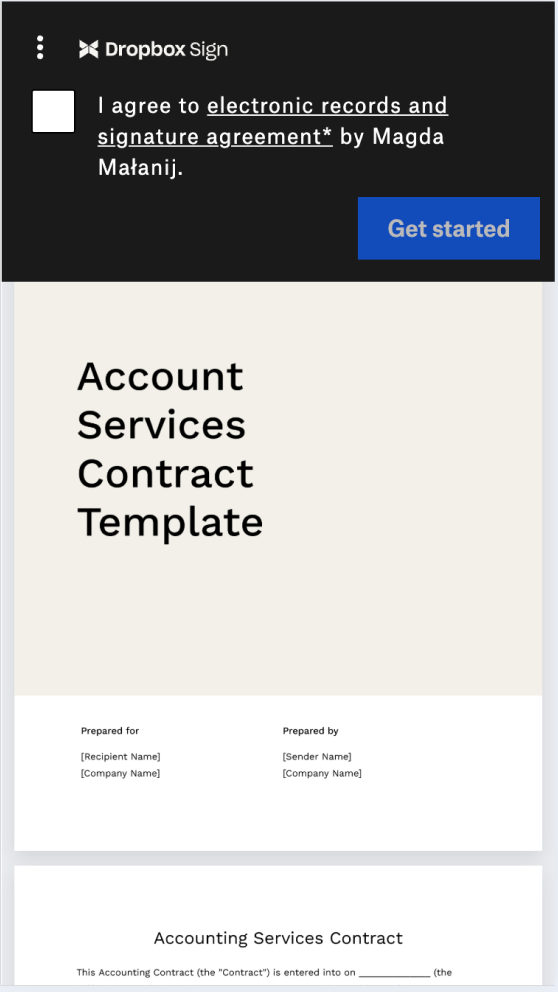 | 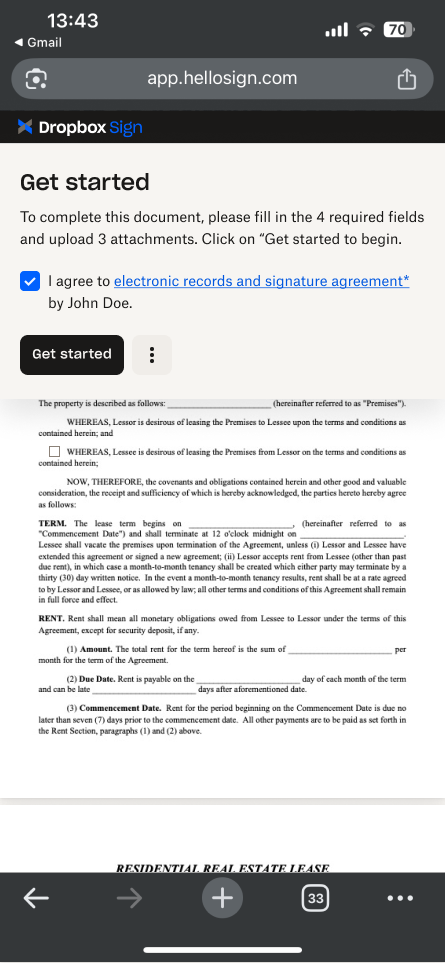 |
| With Form View enabled on a mobile device, selected input fields within the document view will also be displayed in the bottom drawer. When the field is filled out in the bottom drawer, it’s content is reflected in the actual field on the document. The bottom drawer input field will indicate “Required field” or “Optional field” below the input. The “Next” button and the left arrow icon button in the right corner of the drawer allows the signer to navigate between fields on the document. Important Notes: - Selecting the input in the drawer triggers the mobile device keyboard to allow for filling in the field. The drawer will be pushed up and below it keyboard will appear. - Names given to the fields will be visible on the drawer as the input label for clarity. | 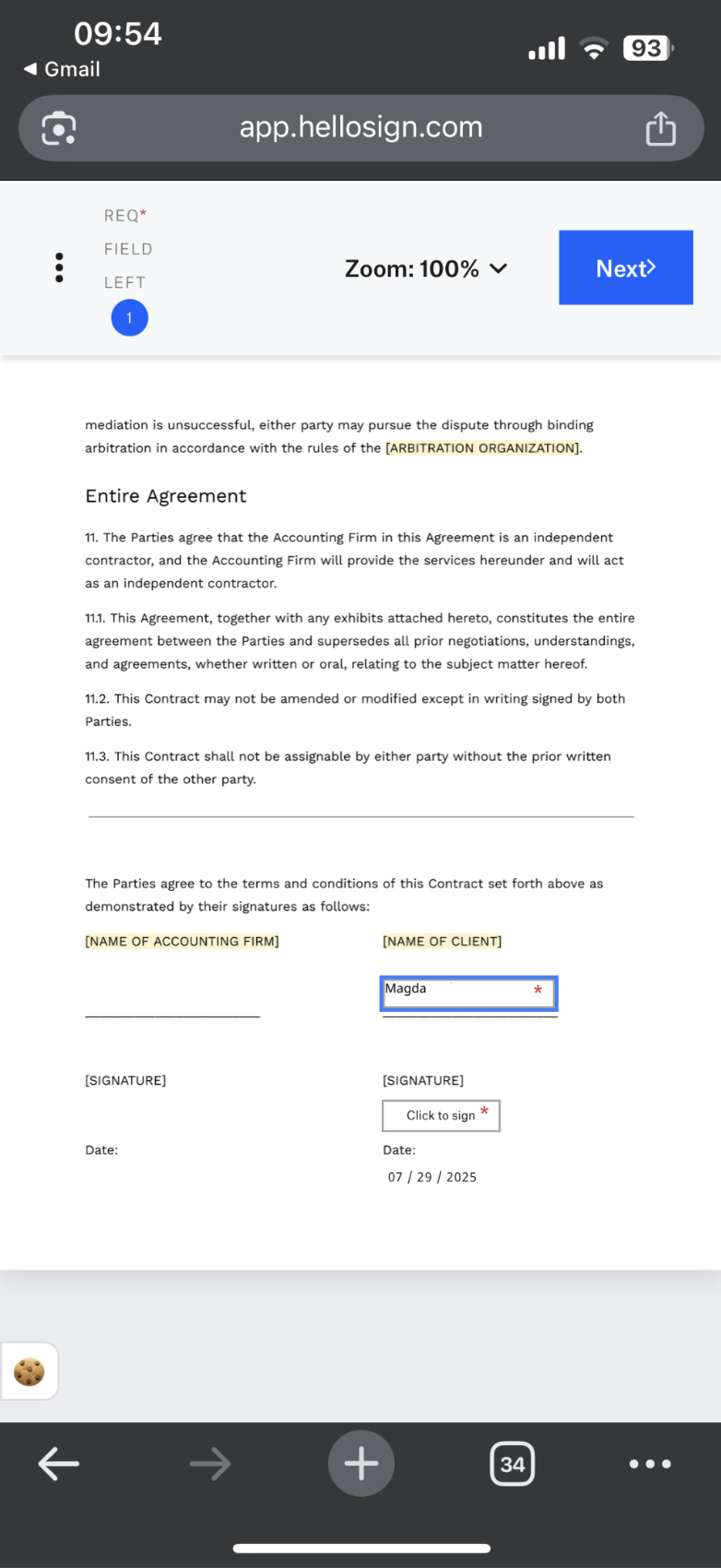 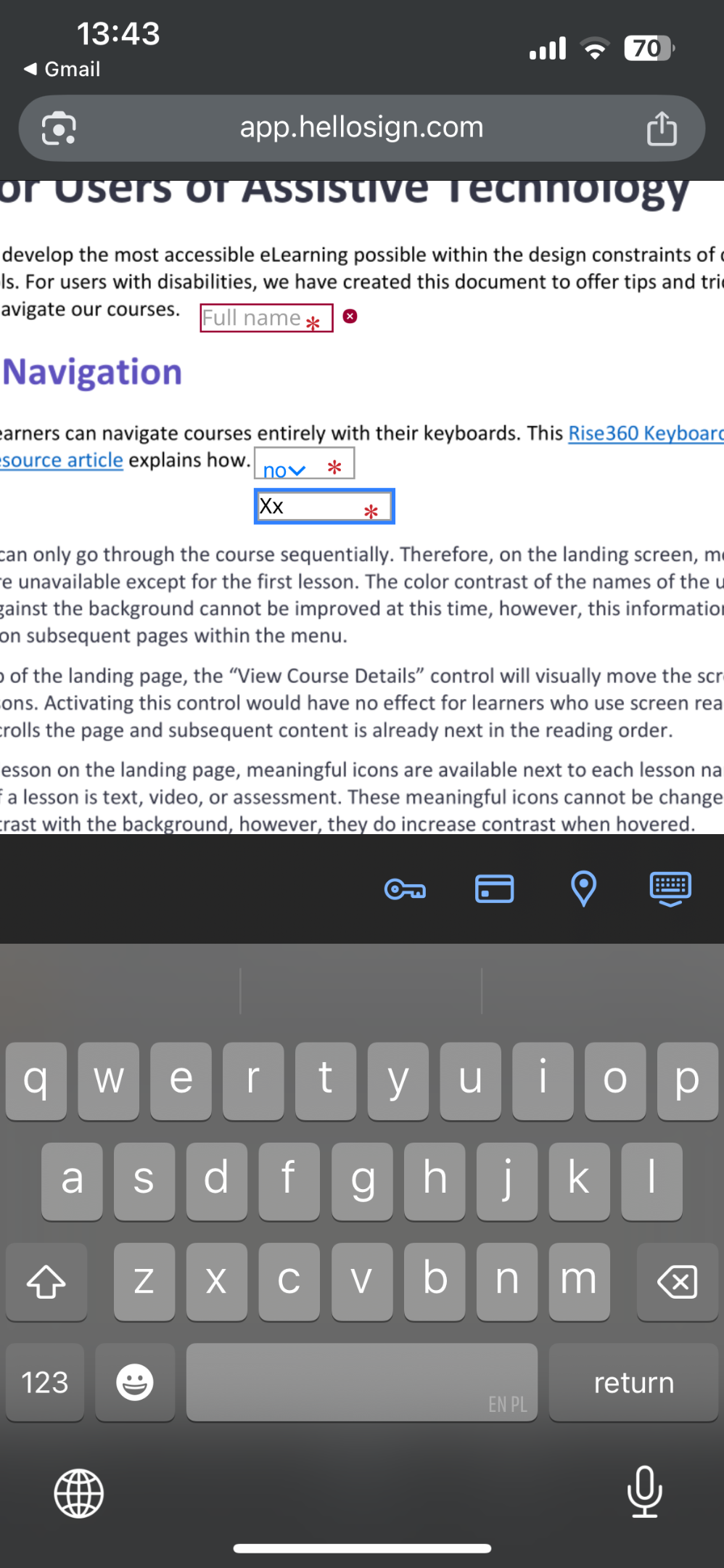 | 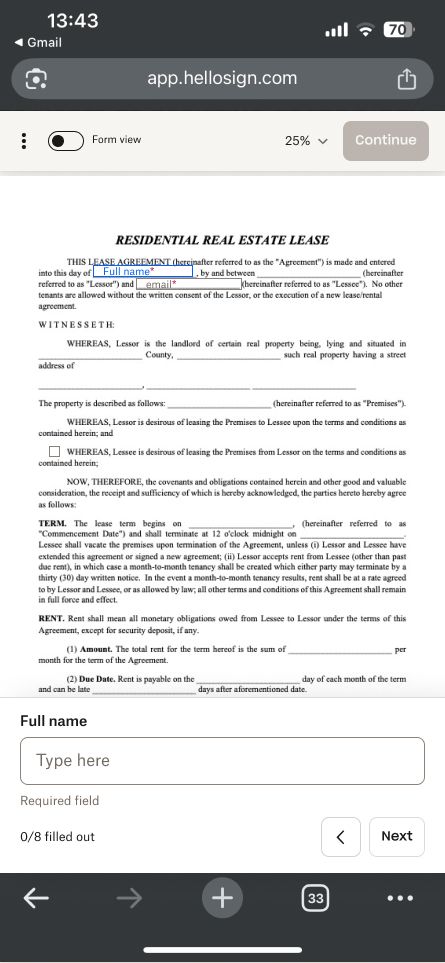 |
| With Form View enabled on a mobile device, the bottom drawer of the document view will also display all checkboxes in a group. Important Notes: - Names provided for the fields will be visible on the drawer as the checkbox label with the group name. - “Required field” / “Optional field” will also be displayed below the grouped checkbox input. The “Next” button and the left arrow icon button in the right corner of the drawer allows the signer to navigate between fields on the document. |  | 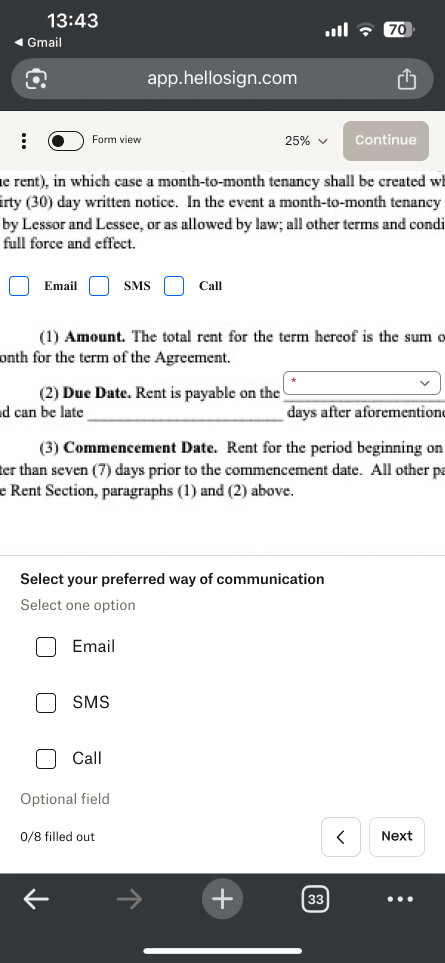 |
| Mobile devices display the legally bound agreement at the top of the document view. The “I agree” button that will finalize the signing process and the left arrow icon for navigation appear below the agreement text. | 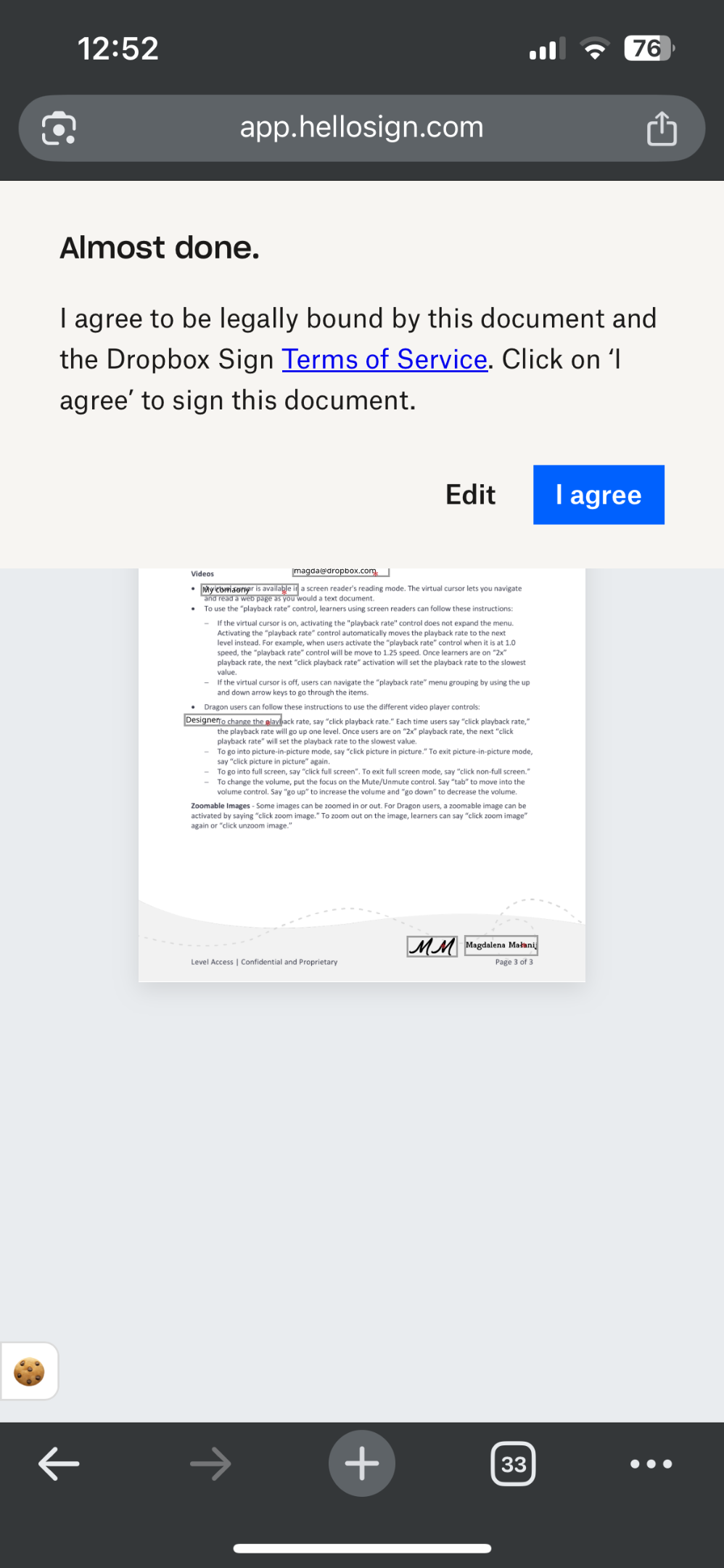 | 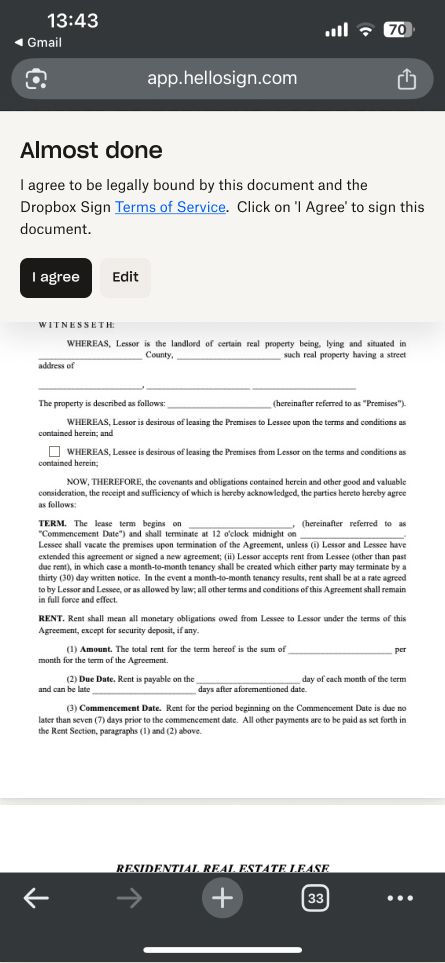 |
| When attachments are required on mobile devices, we will show an attachments panel in a drawer at the bottom of the document view. Clicking “Click here to upload attachments” opens a modal showing: - All required attachments - Upload instructions - Options to select and upload files The modal can be closed using X, Close, or Done, and uploaded files are saved automatically. The drawer shows the number of uploaded files, and files can be updated using the Edit icon. | 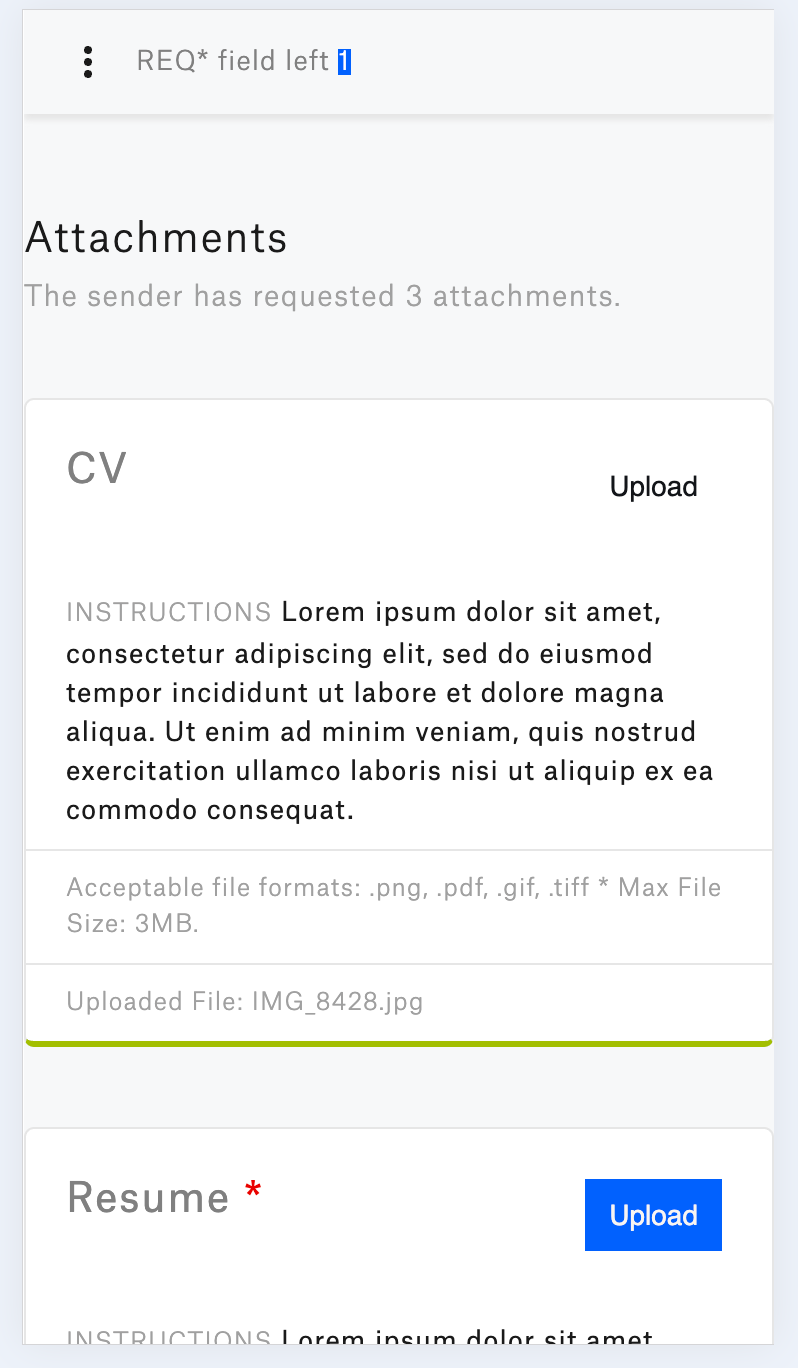 | 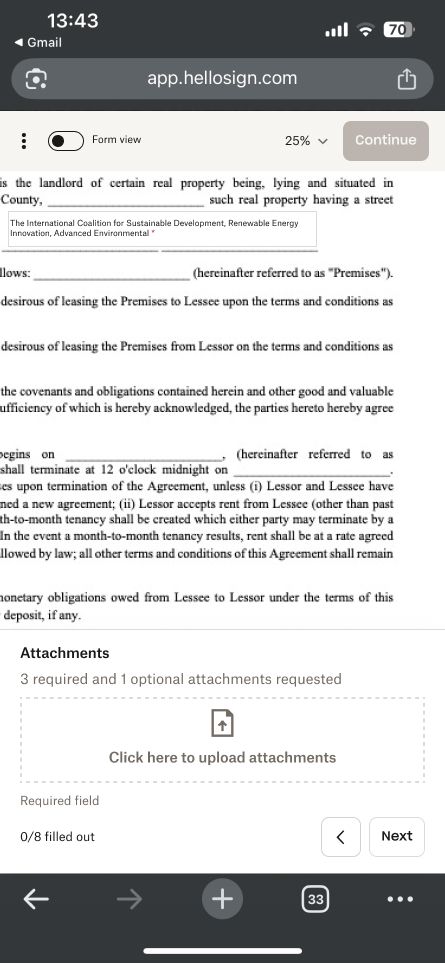 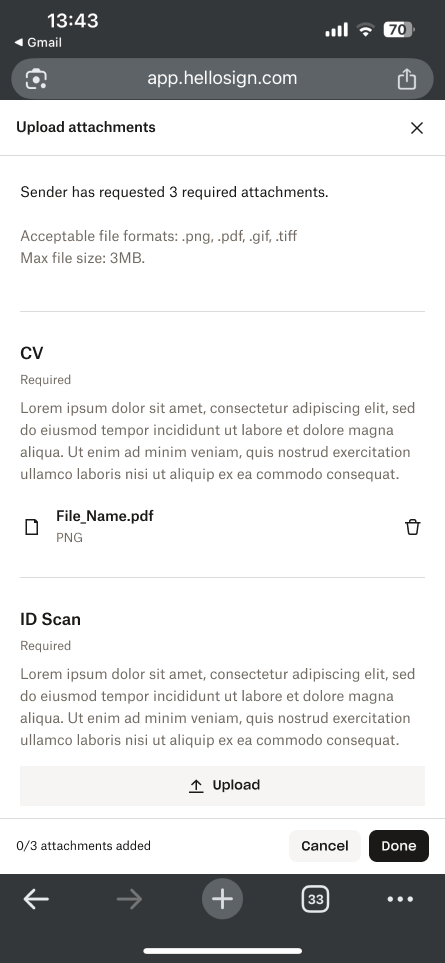 |
| When New Form View is enabled and toggled, attachments (if required) appear at the end of the form. Clicking “Click to upload attachments” opens a modal showing: - All required attachments - Upload instructions - Options to select and upload files The modal can be closed using X, Close, or Done, and uploaded files are saved automatically. The number of uploaded files is shown under the Attachments label at the end of the form, and files can be updated using the Edit icon. | 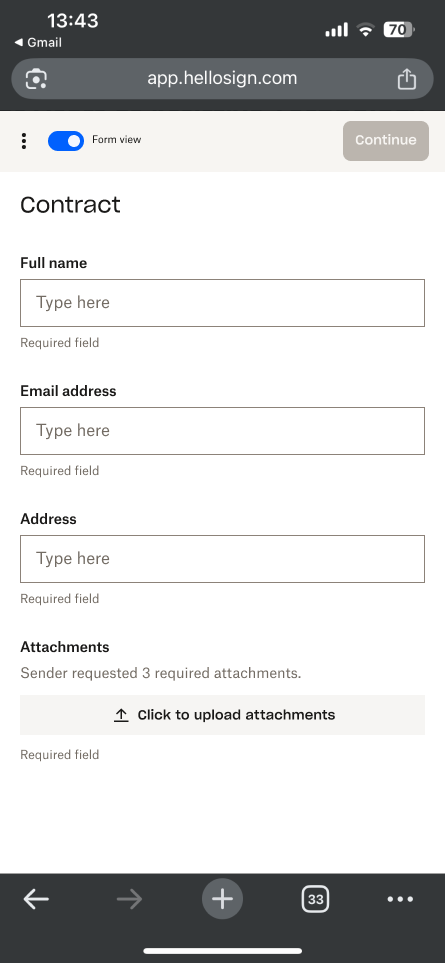 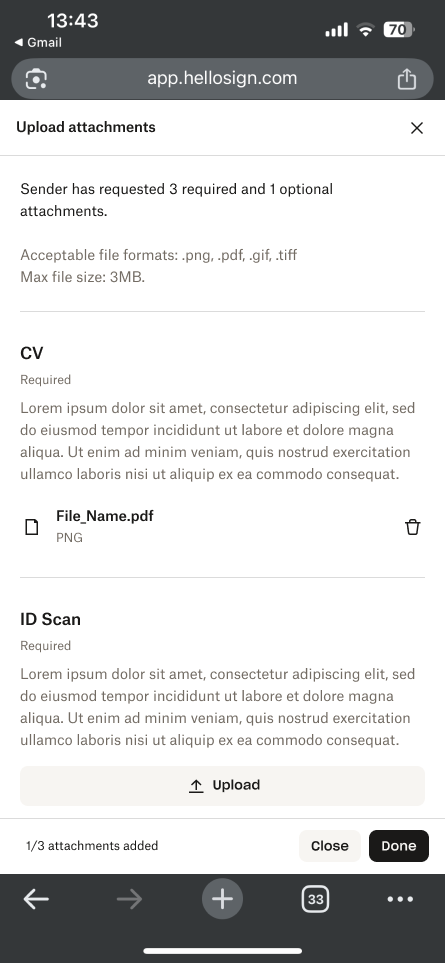 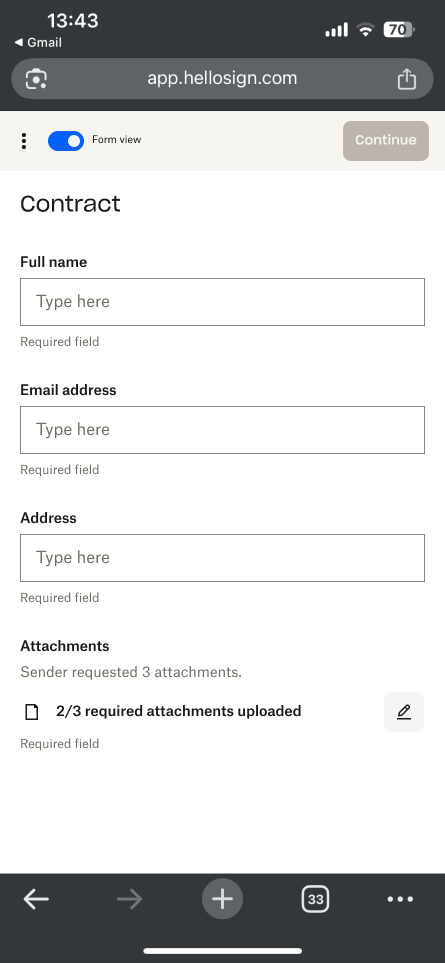 | |
| Signature fields will appear in the drawer at the bottom of the document view. Selecting “Click here to add your signature” opens a modal with an active signature field. You can: - Add a signature by clicking Insert - Insert it into all signature fields by clicking Fill all signature fields - Adjust it using the toolbar options in the active field Once inserted, the signature can be edited by clicking Edit or removed by clicking Clear. | 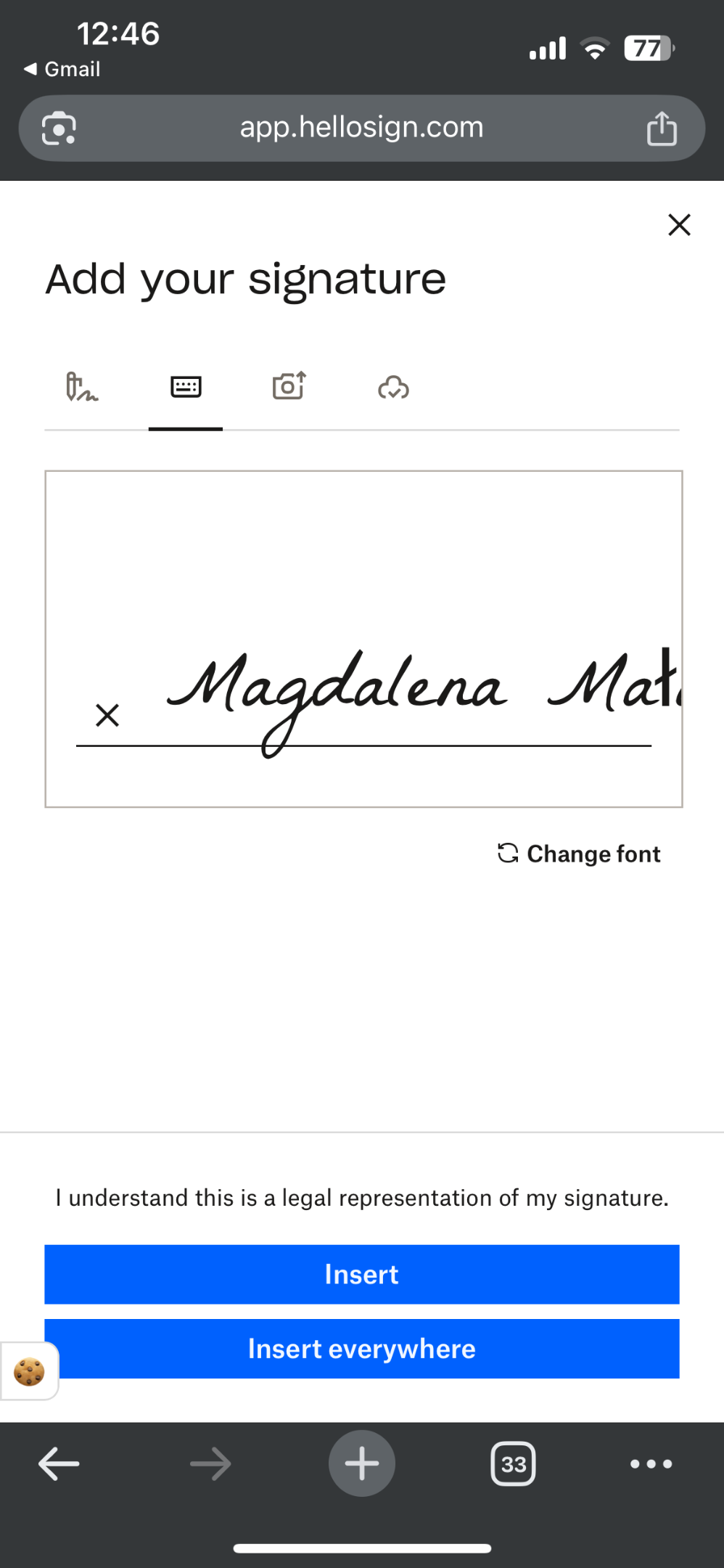 | 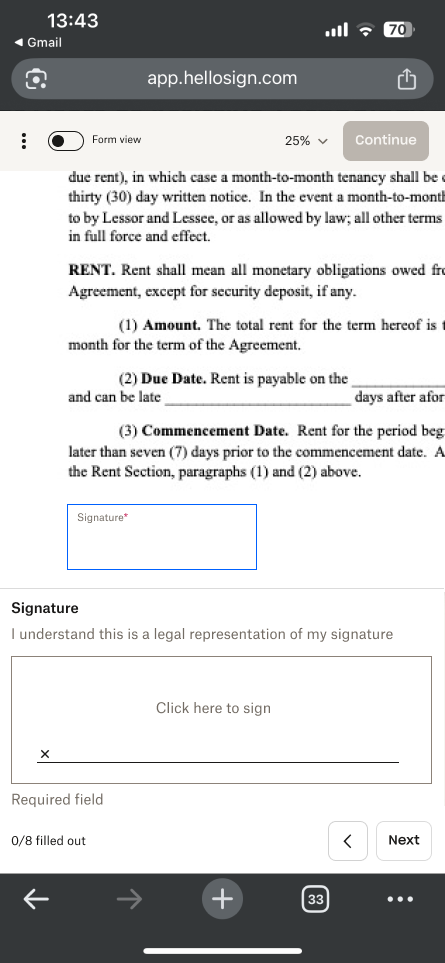 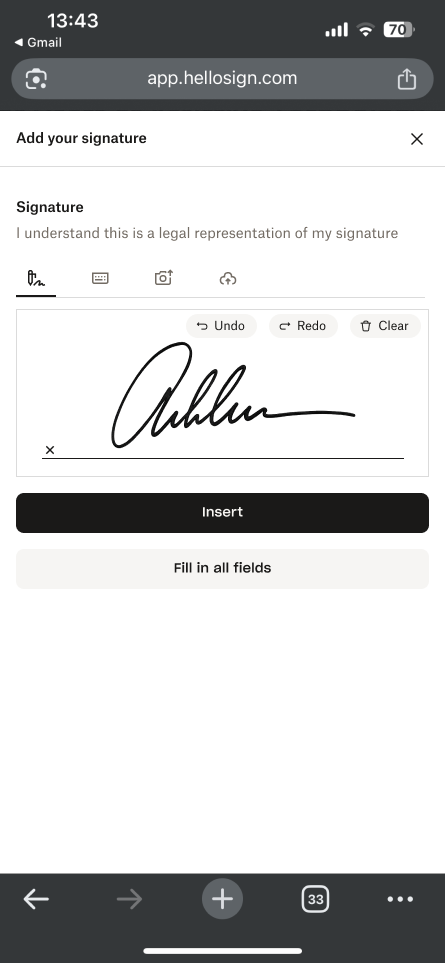 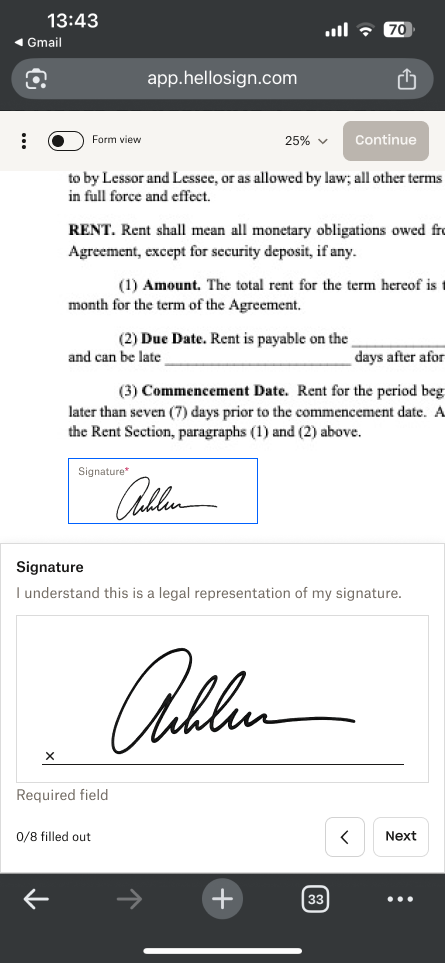 |
| When New Form View is toggled, all fields are displayed in a clear, organized layout. The signature field is active, and you can: - Add a signature by clicking Insert in the field - Insert it into all signature fields by clicking Fill all signature fields - Adjust it using the toolbar options in the active field Once inserted, the signature can be edited by clicking Edit or removed by clicking Clear. | 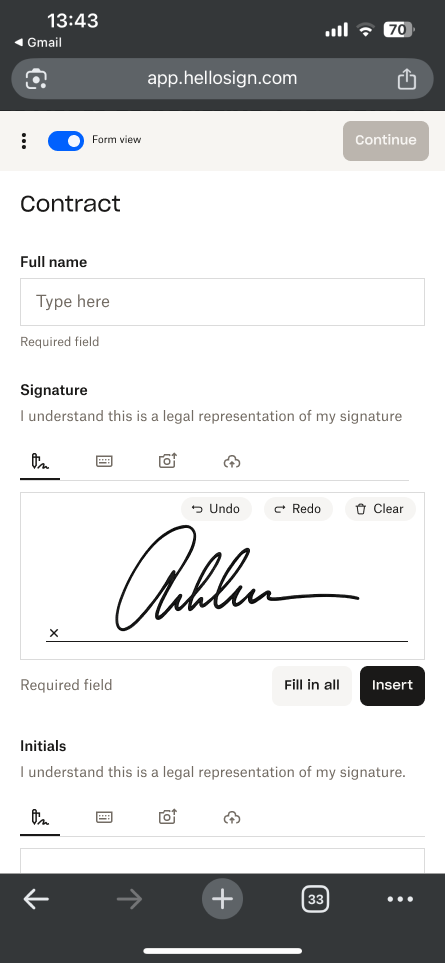 |
Form View in the API: Usage Guide
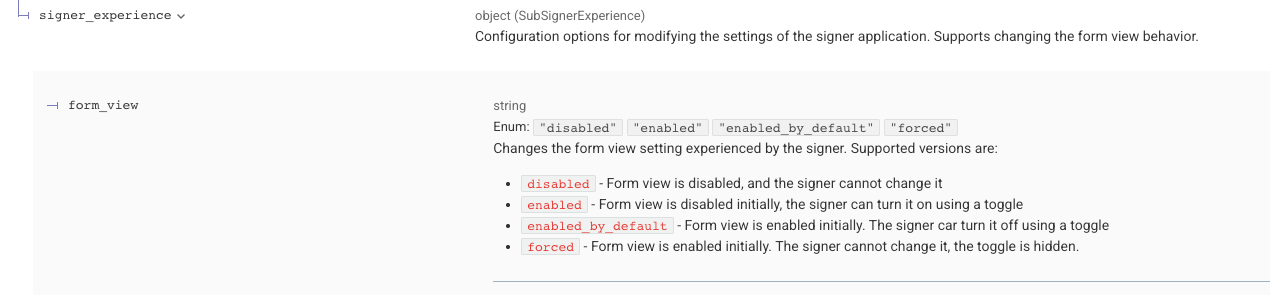
The API now supports form view settings for both template and signature request endpoints. This enhancement introduces a consistent contract update across all affected endpoints, adding a new nested field within thesigner_experience object.New Field Specification
Example JSON
    "signer_experience": {
        "form_view": "enabled"
    }
Affected Endpoints
Template Endpoints
Signature Request Endpoints
- Create Embedded Signature Request
- Create Embedded Signature Request with Template
- Send Signature Request
- Send with Template
- Edit Signature Request
Default Behavior
Theform_view field is optional and defaults to disabled, preserving the current signer-facing experience. Specifying any supported non-default value enables the updated form view.Note:
- The signature request setting will override the template setting if there is a mismatch.
- If template setting is set to
"form_view":"enabled_by_default"and a signature request is initiated from this template, then you can override the template setting by passing in"form_view":"forced".
| Request Schema | Expected Behavior |
|---|---|
“form_view”: "disabled" | - Form view is disabled for the template / signature request. - E.g. Current state templates and signature requests |
“form_view”: "enabled" | - Form view is enabled for the template / signature request. - The toggle is toggled off by default and will be visible to signers. - Note: signer has option to toggle on. 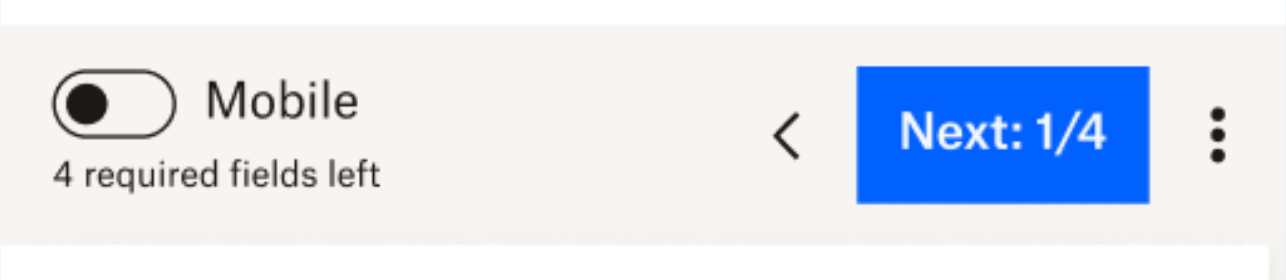 |
“form_view”: "enabled_by_default" | - Form view is enabled for the template / signature request. - The toggle is toggled on by default and is visible to signers. - Note: signer has option to toggle off.  |
“form_view”: "forced" | - Form view is enabled for the template / signature request. - The toggle is toggled on by default and is not visible to signers. - Note: signer does not have the option to toggle on or off.  |
Template vs. Signature Request Behavior
When a signature request is created using a Send With Template endpoint, the signature request will, by default, inherit the form view configuration from the associated template or templates. When multiple templates are included in a single signature request, the following rules apply:
- Inheritance from Templates
- If all templates included in the request specify the same
form_viewvalue, that value is applied to the resulting signature request. - If the values are conflicting the setting is set to the “lowest” version and a warning is added to the response
- If all templates included in the request specify the same
- Conditions for Enabling Form View
- To have form view enabled on the signature request:
- None of the templates used in the request may have
form_viewexplicitly set todisabled. - If even one template sets
form_view: "disabled", the signature request cannot use form view.
- None of the templates used in the request may have
- To have form view enabled on the signature request:
- Overriding via Signature Request Payload
- A
form_viewvalue may be passed directly in the payload of the Send With Template endpoint.- When provided, this value overrides the template-level form view settings.
- However, this override is not allowed if any of the templates in the request have
form_viewset todisabled. In that case, validation will fail, and the request cannot enable form view.
- A
This behavior ensures that form view is only enabled when all participating templates are compatible with the form view experience.
Validation Requirements and Updating Templates
To support form view, all fields within a template or signature request must include a non-empty name attribute. Field names serve as the labels in form view and should clearly communicate each field’s context.
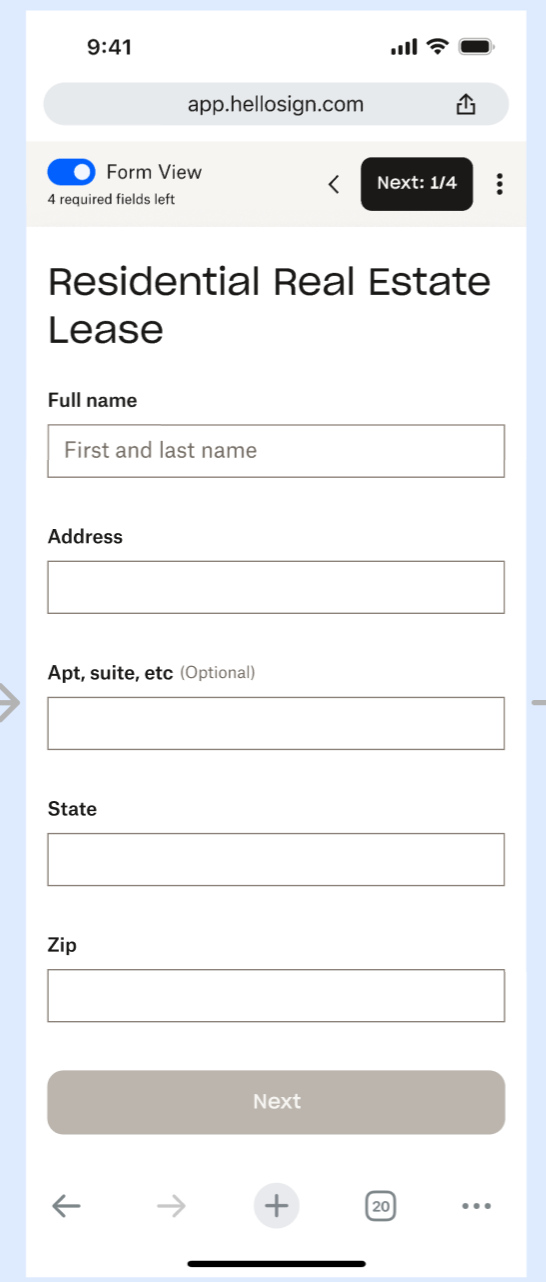
Updating Existing Templates
A new template update endpoint allows teams to:
- Enable form view on existing templates
- Add or update field names to meet validation requirements
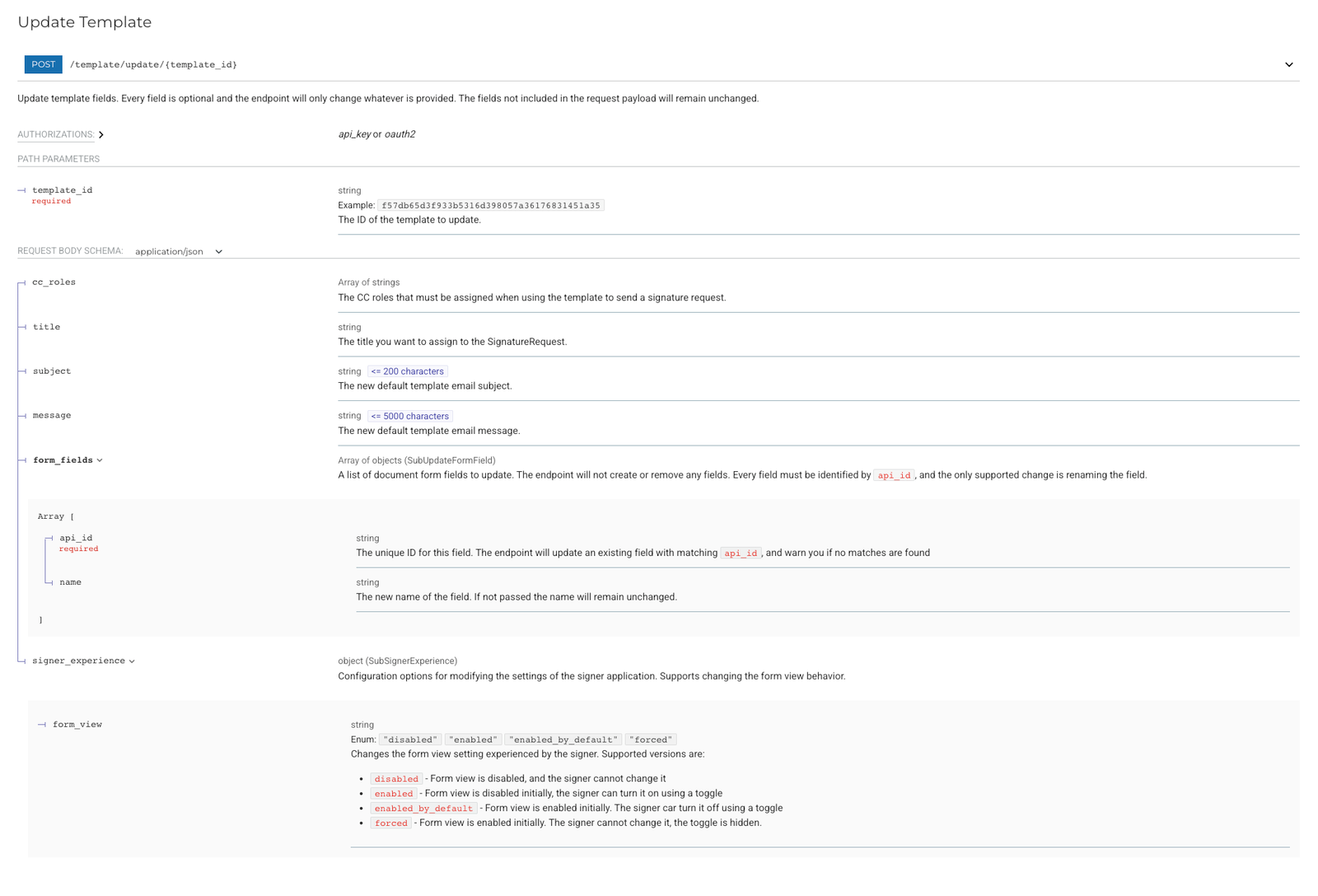
Formal documentation for this endpoint is forthcoming. In the meantime, please refer to the following reference image and example payload.
Update Template Endpoint
Example Update Payload
    {
      "signer_experience": {
        "form_view": "enabled"
      },
      "title": "Test Title",
      "subject": "Test Subject",
      "message": "Test Message",
      "cc_roles": ["CC Role 1", "CC Role 2"],
      "form_fields": [
        {
          "api_id": "uniqueIdHere_1",
          "name": "New name 1"
        },
        {
          "api_id": "uniqueIdHere_2",
          "name": "New name 2"
        }
      ]
    }