***
description: >-
eID allows you to authenticate users with eID processes provided by
organizations in the European Union. Click here to learn more about how to add
eID authentication to your flows.
'og:description': >-
eID allows you to authenticate users with eID processes provided by
organizations in the European Union. Click here to learn more about how to add
eID authentication to your flows.
---------------------------------
# Adding eID authentication to your documents
## Setup
| Steps | Images |
| --------------------------------------------------------------------------------------------------------------------------------------------------------------------------------------------------------------------- | -------------------------------------------------------------------------------------------------------------------------------------------------------------- |
| 1. Open the `Admin Console` from the user menu in the Dropbox Sign web page. | 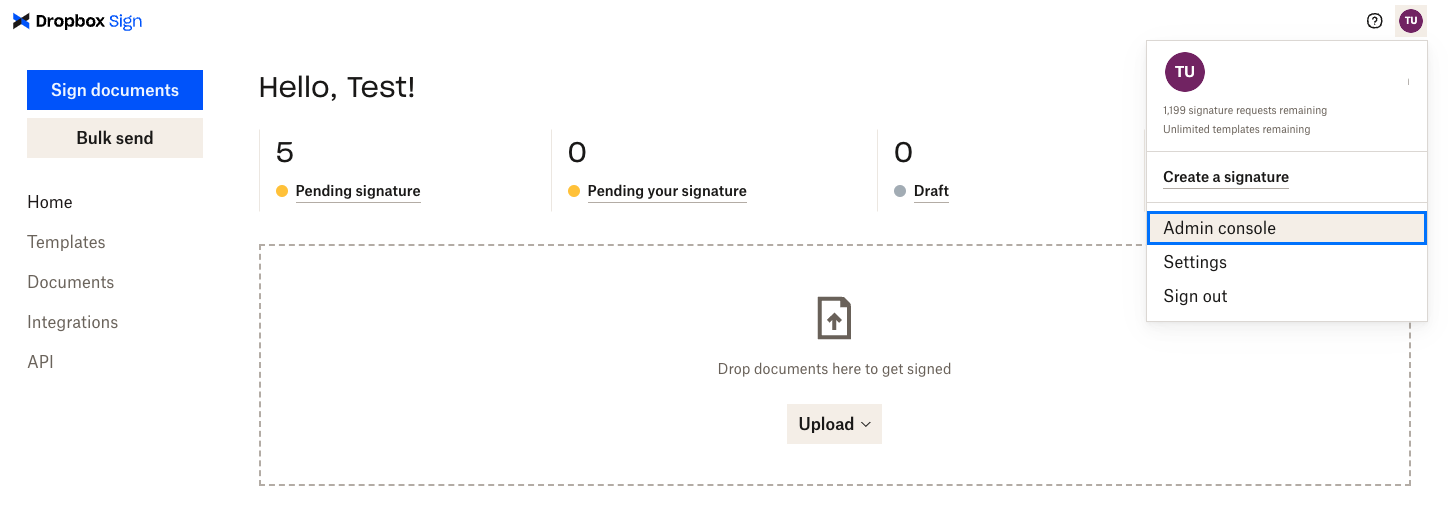 |
| 2. In the `Admin Console`, navigate to the `Signature requests` subsection of the `Settings` section. In the `Signature Request Options` subsection of the `Signature requests` section, navigate to the `eID` entry. |
|
| 2. In the `Admin Console`, navigate to the `Signature requests` subsection of the `Settings` section. In the `Signature Request Options` subsection of the `Signature requests` section, navigate to the `eID` entry. | 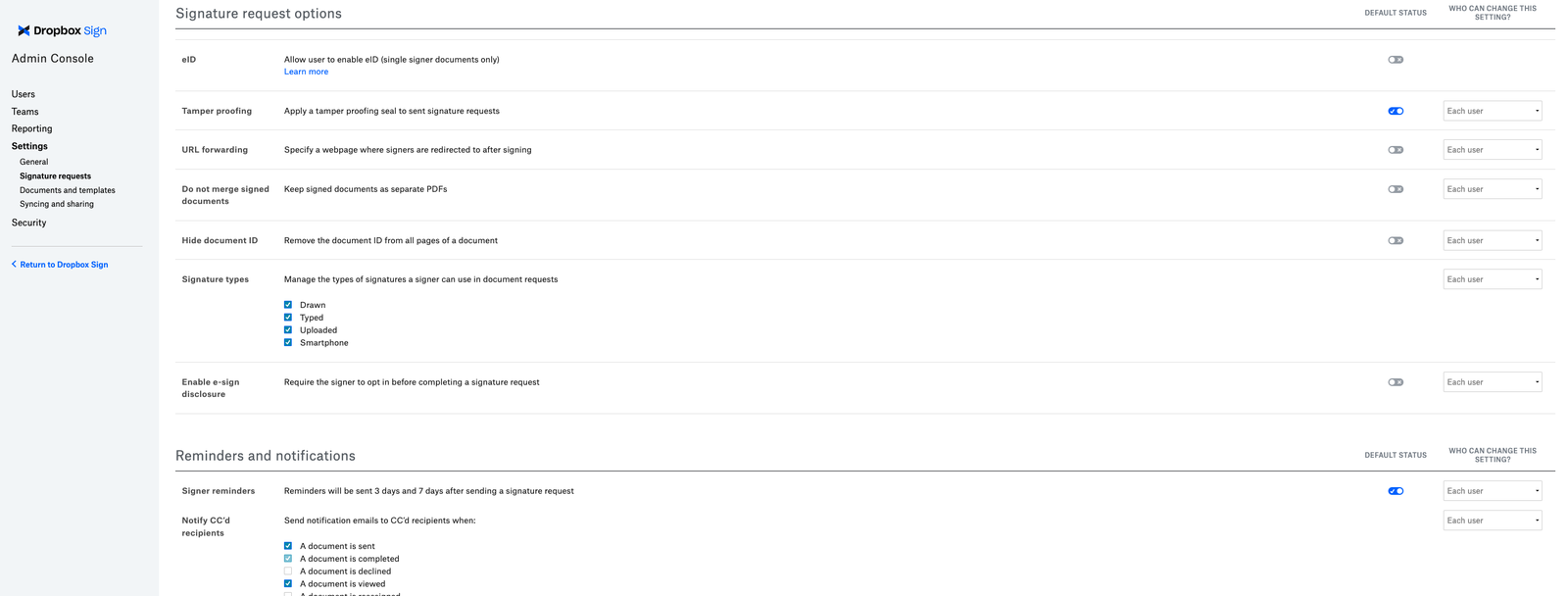 |
| 3. Activate eID authentication by selecting the switch control. Confirm your choice on the popup modal. |
|
| 3. Activate eID authentication by selecting the switch control. Confirm your choice on the popup modal. | 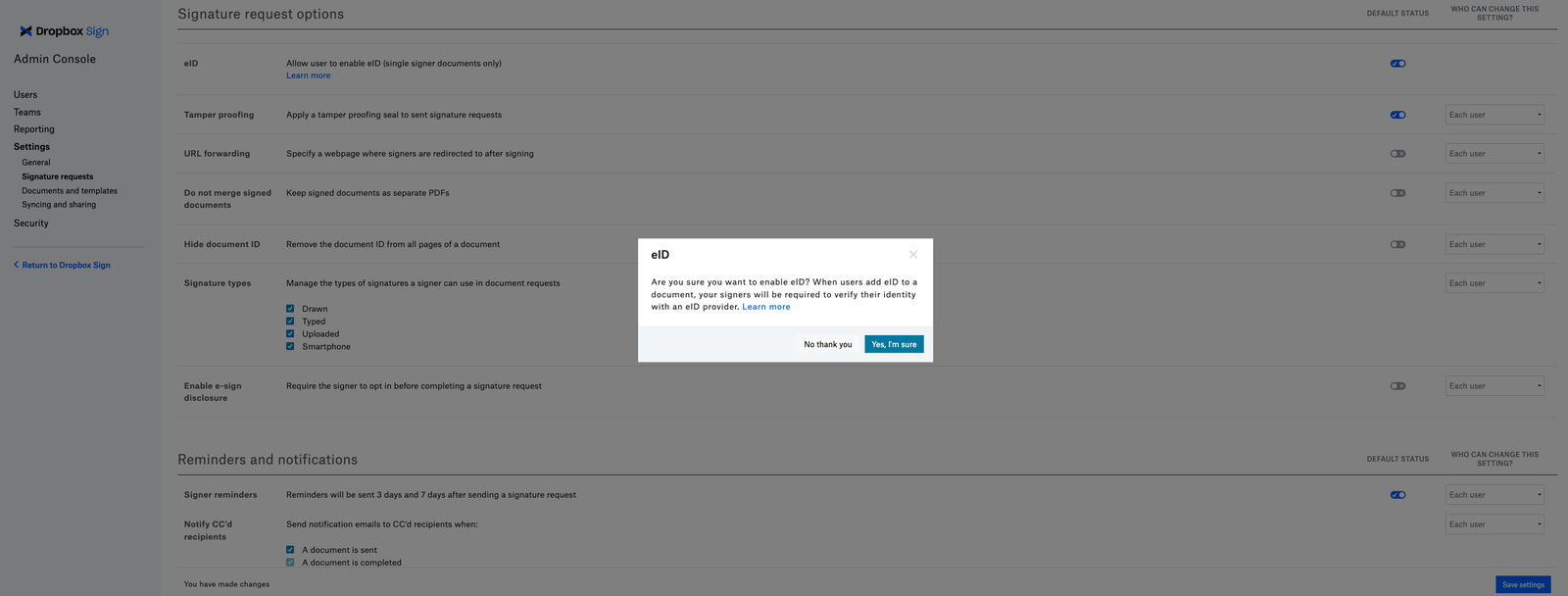 |
| 4. If the activation is successful, a confirmation will appear at the top of the page |
|
| 4. If the activation is successful, a confirmation will appear at the top of the page | 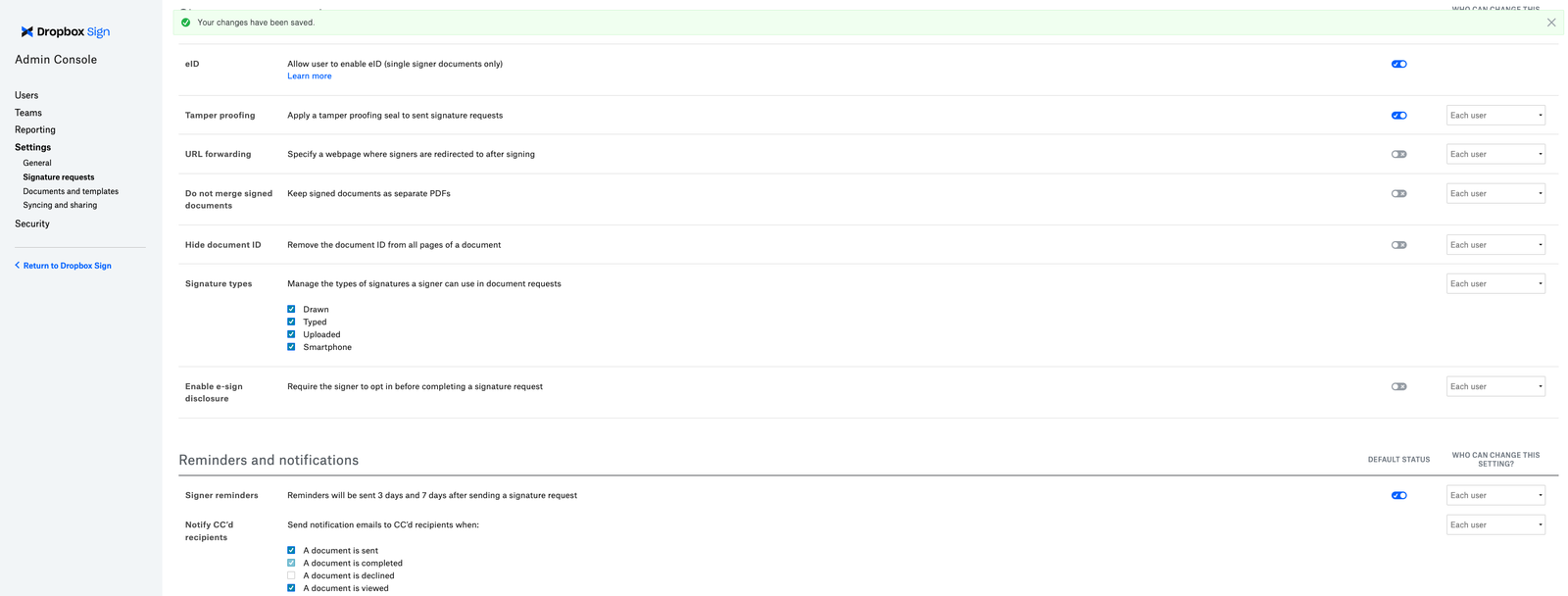 |
Reminder: eID authentication requires a per-request subscription. If needed, contact API support to change your subscription.
## Dropbox Sign Website
| Steps | Images |
| --------------------------------------------------------------------------------------------------------- | --------------------------------------------------------------------------------------------------------------------------------------------------------------- |
| 1. When the Sender is assigning a Signer, the option to "Enable eID" will be present. Check the checkbox. |
|
Reminder: eID authentication requires a per-request subscription. If needed, contact API support to change your subscription.
## Dropbox Sign Website
| Steps | Images |
| --------------------------------------------------------------------------------------------------------- | --------------------------------------------------------------------------------------------------------------------------------------------------------------- |
| 1. When the Sender is assigning a Signer, the option to "Enable eID" will be present. Check the checkbox. | 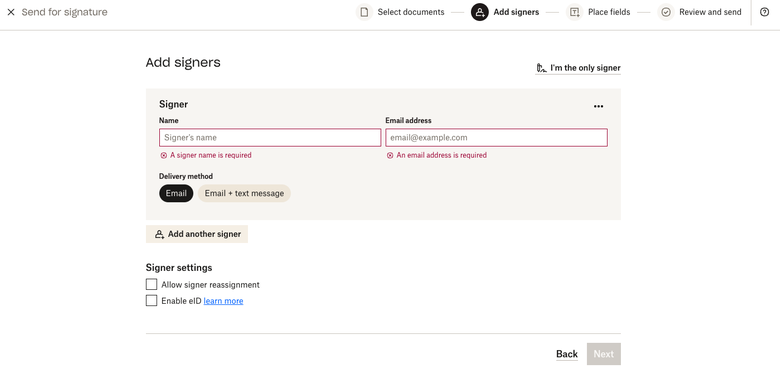 |
| 1. Confirm in the modal that eID should be enabled for this request |
|
| 1. Confirm in the modal that eID should be enabled for this request | 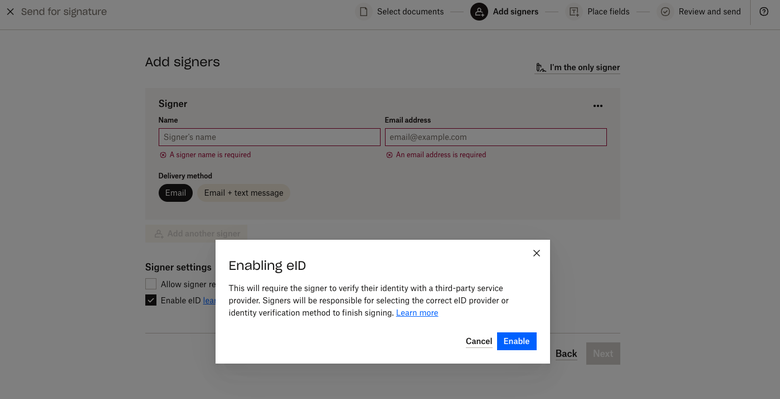 |
Please note that:
* When eID is enabled, the request can only be sent to one signer. Therefore, the signer cannot be re-ordered or reassigned.
* The Sender will get confirmation modal. Click "Enable" to confirm that eID will be required for this document.
## API
### Non-embedded
| Steps | Images |
| -------------------------------------------------------- | ------ |
| 1. Add `is_eid` on your request, with a value of `true`. | |
Supported endpoints:
* [Send Signature Request](/api/signature-request/send)
* [Send with Template](/api/signature-request/send-with-template)
### Embedded
| Steps | Images |
| ---------------------------------------------------------------------------------------------------------------------------------------------------- | ------ |
| 1. Set up an embedded request. See the [embedded request walkthrough](/docs/walkthroughs/embedded-requesting) for details. | |
| 2. When sending the initial API request, set the value of the `force_signer_roles` to `true`. This will enable the requester to see the signer step. | |
| 3. Inside the embedded iFrame, follow the instructions in the "Dropbox Sign Website" section above to enable eID. | |
| Supported endpoints: | |
* [Create Embedded Unclaimed Draft](/api/unclaimed-draft/create-embedded)
* [Embed Unclaimed Draft with Template](/api/unclaimed-draft/create-embedded-with-template)
Please note that:
* Using eID authentication on the API still only allows one signer.
* eID authentication cannot be used in `test_mode`.
* eID authentication does not support Embedded Signing. The Enable eID option will not be available if `is_for_embedded_signing` is set to true.
|
Please note that:
* When eID is enabled, the request can only be sent to one signer. Therefore, the signer cannot be re-ordered or reassigned.
* The Sender will get confirmation modal. Click "Enable" to confirm that eID will be required for this document.
## API
### Non-embedded
| Steps | Images |
| -------------------------------------------------------- | ------ |
| 1. Add `is_eid` on your request, with a value of `true`. | |
Supported endpoints:
* [Send Signature Request](/api/signature-request/send)
* [Send with Template](/api/signature-request/send-with-template)
### Embedded
| Steps | Images |
| ---------------------------------------------------------------------------------------------------------------------------------------------------- | ------ |
| 1. Set up an embedded request. See the [embedded request walkthrough](/docs/walkthroughs/embedded-requesting) for details. | |
| 2. When sending the initial API request, set the value of the `force_signer_roles` to `true`. This will enable the requester to see the signer step. | |
| 3. Inside the embedded iFrame, follow the instructions in the "Dropbox Sign Website" section above to enable eID. | |
| Supported endpoints: | |
* [Create Embedded Unclaimed Draft](/api/unclaimed-draft/create-embedded)
* [Embed Unclaimed Draft with Template](/api/unclaimed-draft/create-embedded-with-template)
Please note that:
* Using eID authentication on the API still only allows one signer.
* eID authentication cannot be used in `test_mode`.
* eID authentication does not support Embedded Signing. The Enable eID option will not be available if `is_for_embedded_signing` is set to true.